Four Photoshop Tools That Cut My Portrait Cleanup Time in Half

Four Photoshop Tools That Cut My Portrait Cleanup Time in Half

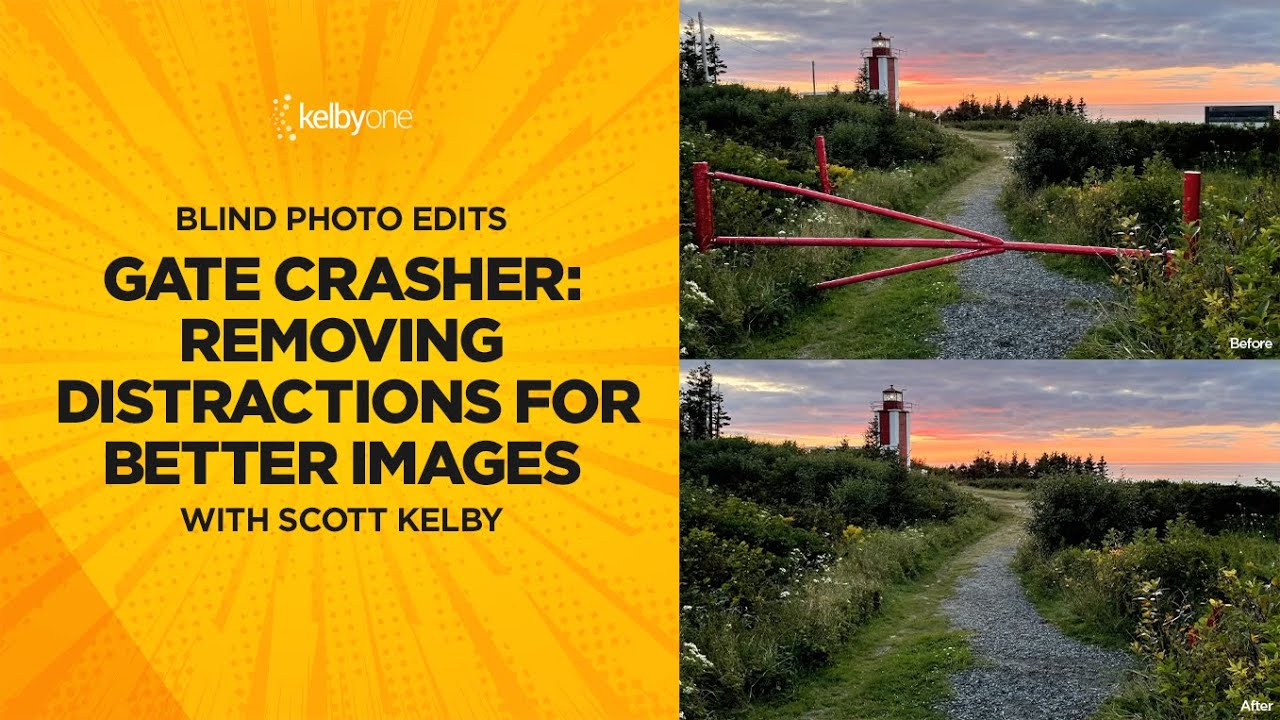
I had a shoot come back from a client last month with a note I’ve seen a hundred times: “Can you just clean it up a little?” The background had a half-visible light stand, the framing was too tight on the left side, and the sky looked flat. Any one of those fixes is easy. All three, on a deadline, across a full gallery? That’s where you start feeling the friction.

Firefly 5 Generative Fill Is Actually Useful Now — Here's How to Use It Without Making a Mess

Firefly 5 Generative Fill Is Actually Useful Now — Here's How to Use It Without Making a Mess

I’ll be honest: I’ve been skeptical of Generative Fill since it launched. Not because the technology isn’t impressive, but because the way most people use it creates more cleanup work than it saves. Blown-out edges, AI textures that don’t match the source image, fills baked directly into the pixel layer with no way to walk them back. I’ve seen it in client files. I’ve done it myself in early tests and quietly deleted the results.

Restoring Blurry Vintage Photos with Photoshop's Generative Upscale (One-Click Method)

Restoring Blurry Vintage Photos with Photoshop's Generative Upscale (One-Click Method)

I’ve spent the last few years watching AI integration transform Photoshop from a static tool into something genuinely intelligent. And honestly? The new Generative Upscale feature might be one of the most practical implementations I’ve seen yet. In this excellent tutorial, Aaron Nace (PHLEARN) walks through exactly how to take a blurry vintage photo and restore it to crisp, magazine-quality clarity in literally one click. Let me break down what you’re about to learn and why it matters for anyone sitting on a collection of old family photos or soft-focus film scans.

Remove Distractions in Photoshop in Minutes: Aaron Nace's Game-Changing Generative Fill Workflow

Remove Distractions in Photoshop in Minutes: Aaron Nace's Game-Changing Generative Fill Workflow

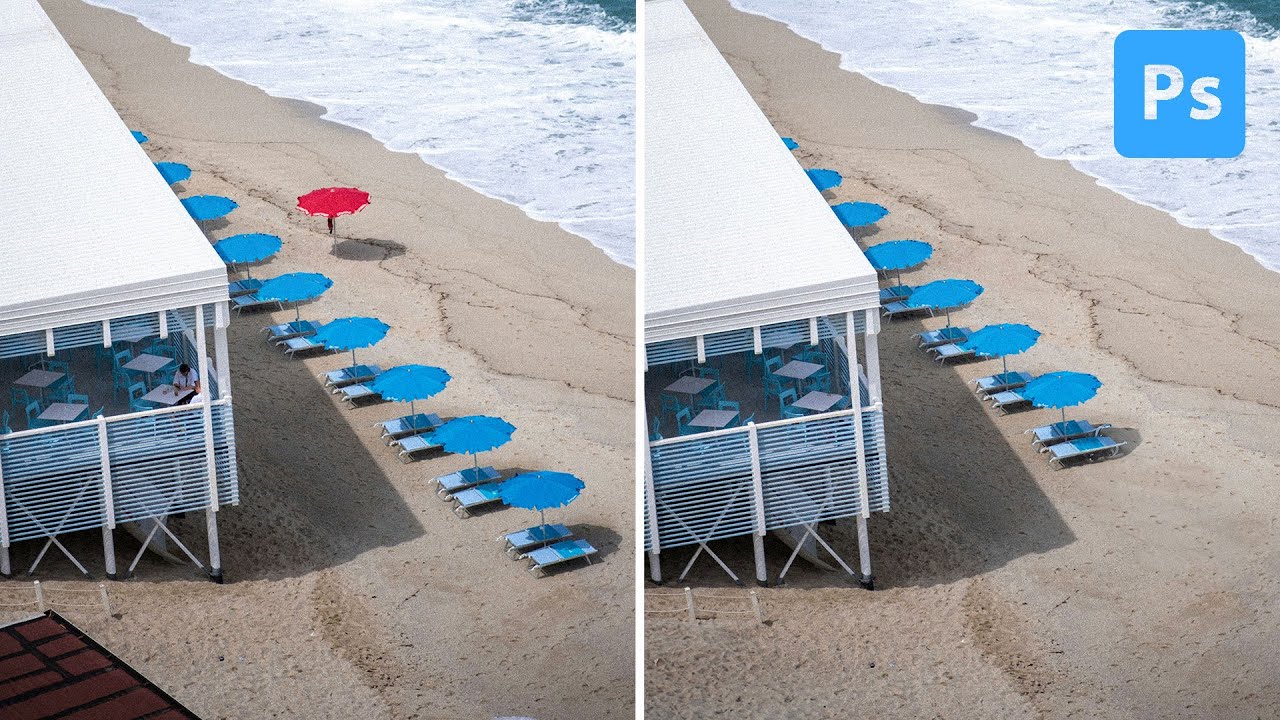
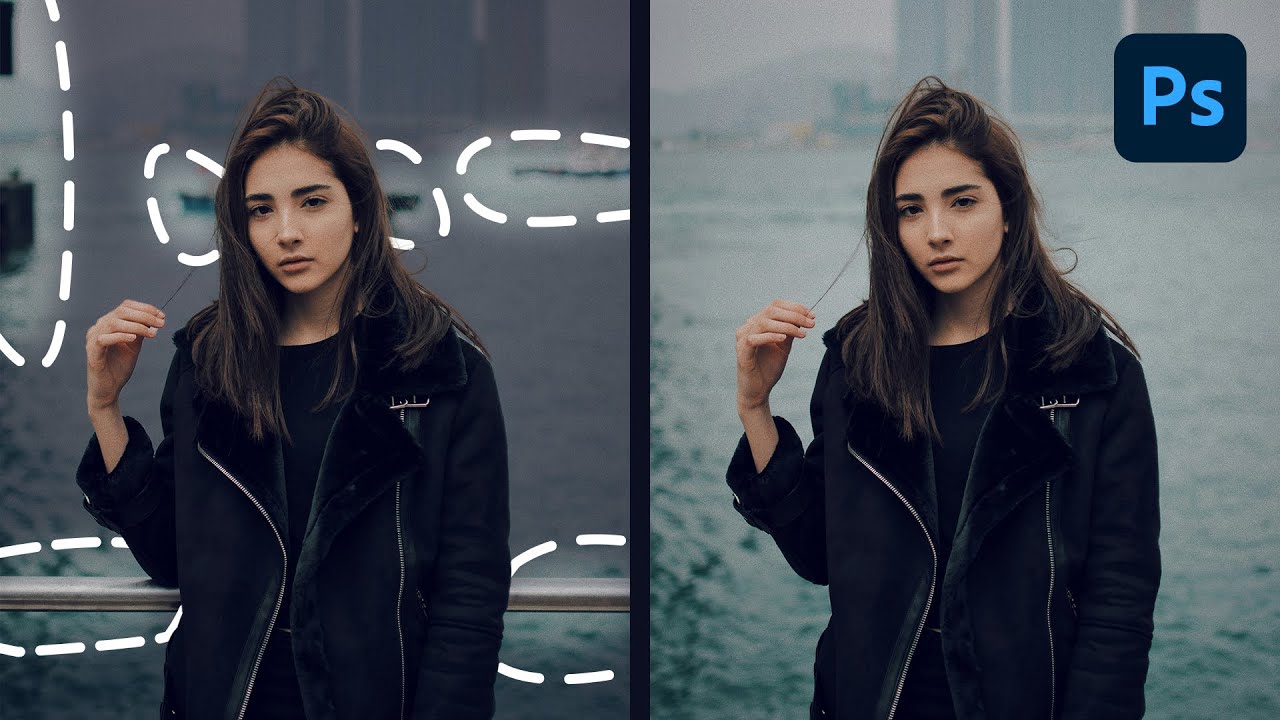
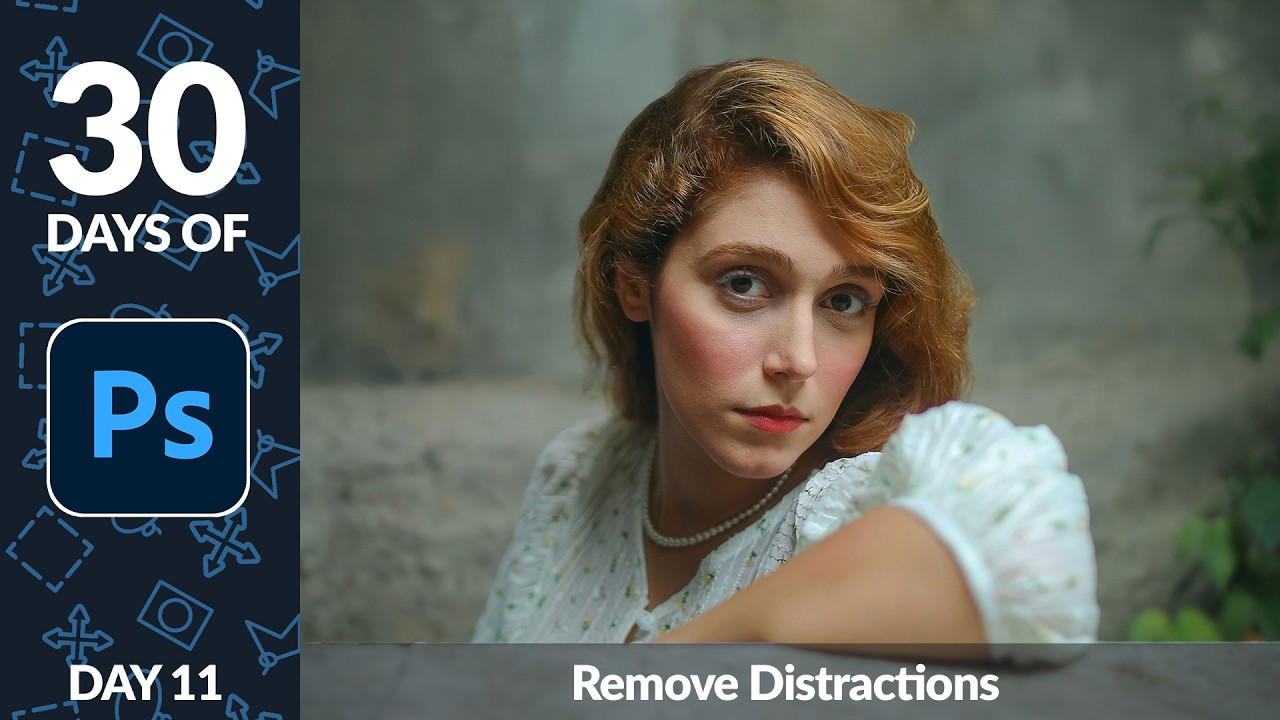
The Game-Changer for Photo Cleanup I’ve spent years testing different Photoshop retouching workflows, and I can tell you without hesitation: the method Aaron Nace demonstrates in this tutorial is genuinely one of the fastest ways to remove distractions from your images. What used to take 15-20 minutes of careful cloning and healing now takes just a couple of clicks. In this excellent tutorial, Aaron Nace (PHLEARN) reveals exactly how to leverage Photoshop’s Generative Fill with the Selection Brush tool to eliminate unwanted elements in seconds.