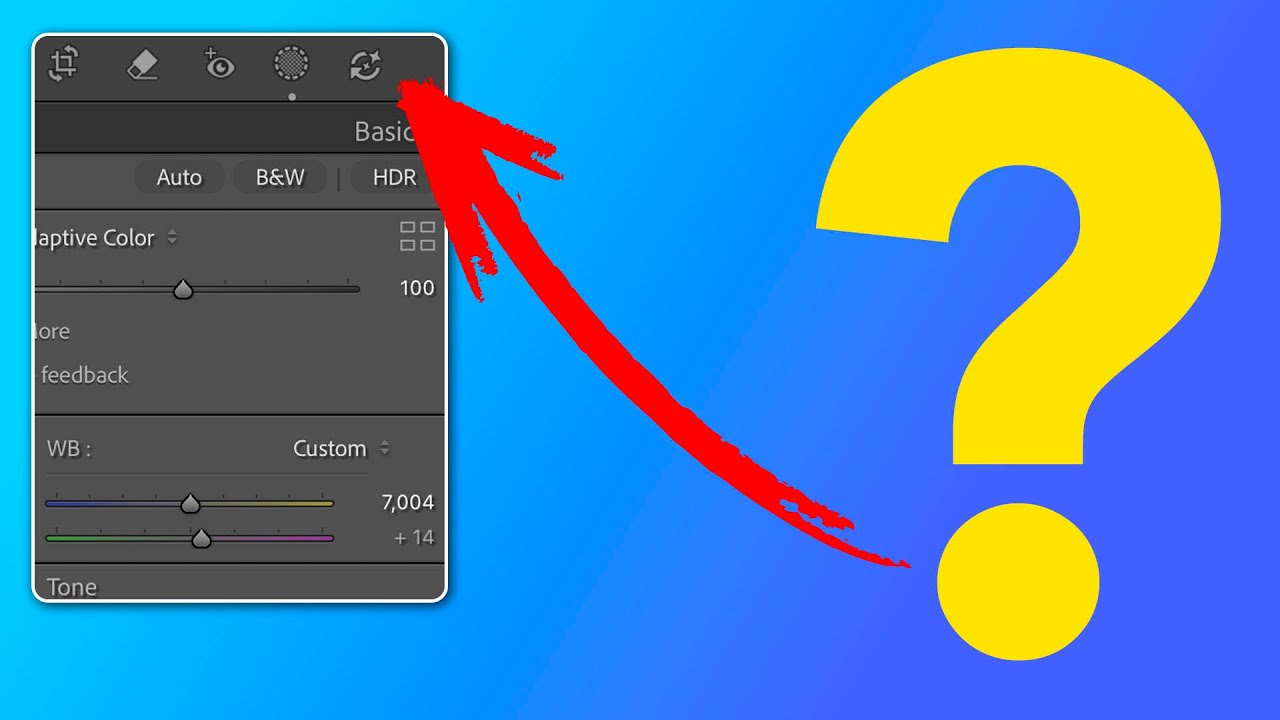
Lightroom's AI Edit Order Warning: What That Color-Coded Icon Actually Means for Your Workflow

Lightroom's AI Edit Order Warning: What That Color-Coded Icon Actually Means for Your Workflow

Order matters. I learned that the hard way running a commercial studio where consistency across hundreds of images isn’t a preference, it’s a contract requirement. When Adobe quietly added a new AI edit status icon to the Lightroom Classic toolbar, my first reaction was the same one I have whenever Adobe ships something new: is this going to break my existing workflow, or make it better? In this Matt Kloskowski tutorial, Watch the full tutorial on YouTube, Matt does something I appreciate in a good instructor: he doesn’t just explain the feature, he tells you when to ignore the rules it suggests.

Photoshop's Updated Remove Tool Is the Closest Thing to Magic I've Added to My Workflow

Photoshop's Updated Remove Tool Is the Closest Thing to Magic I've Added to My Workflow

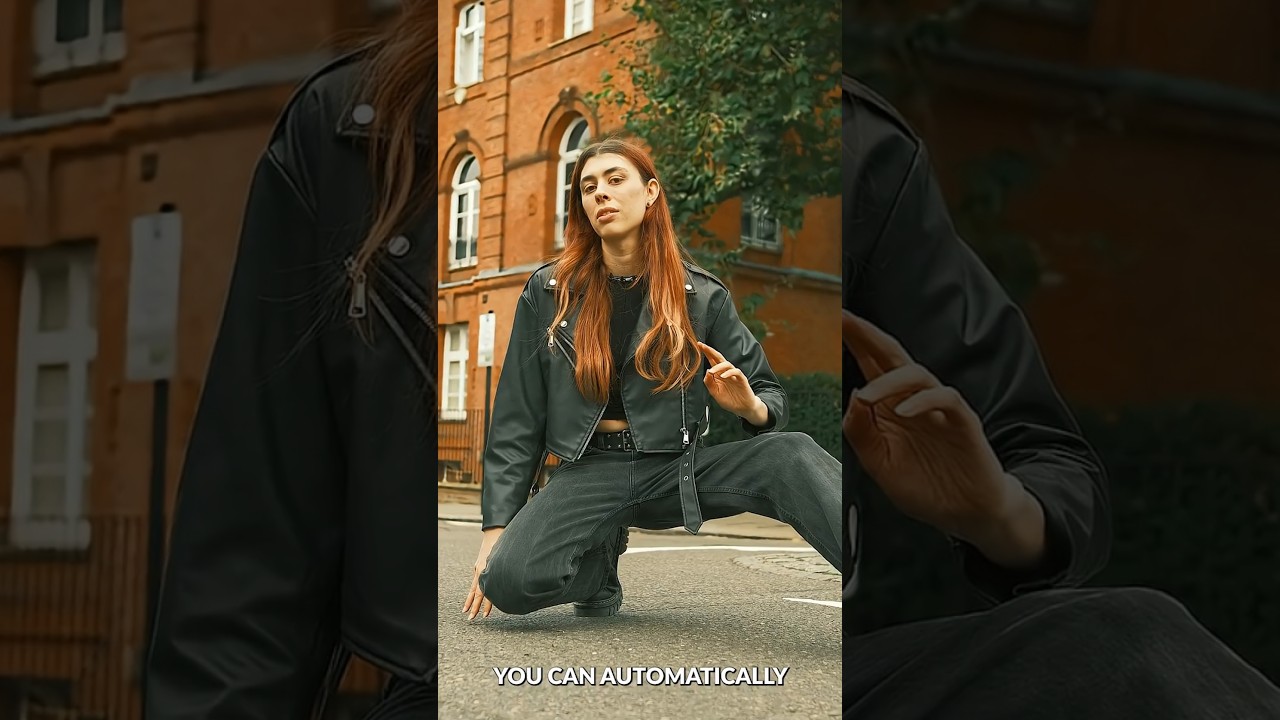
I track time obsessively. Not in a vague, “I should be more productive” way, but in a literal spreadsheet-with-color-coded-columns way. So when a tool promises to save hours on a task I repeat constantly across client work, I pay attention immediately. The Remove Tool in Photoshop has always been solid, but the latest update pushes it into genuinely different territory. Instead of painting over distractions manually one by one, Photoshop can now scan your entire image, identify what doesn’t belong, and remove it all in a single operation.