How to Get Lightroom Presets Working on Your Phone (Yes, Really)

How to Get Lightroom Presets Working on Your Phone (Yes, Really)

I’ll be straight with you: I resisted mobile editing for a long time. Fifteen years of working in commercial studios will do that to you. My workflow lives on a calibrated monitor, a fast desktop, and a filing system that would make most archivists nervous. But clients don’t care about any of that when they’re texting you at 8 p.m. asking why their Instagram post isn’t up yet. The phone has become a legitimate part of the job, and that means the editing tools need to follow.

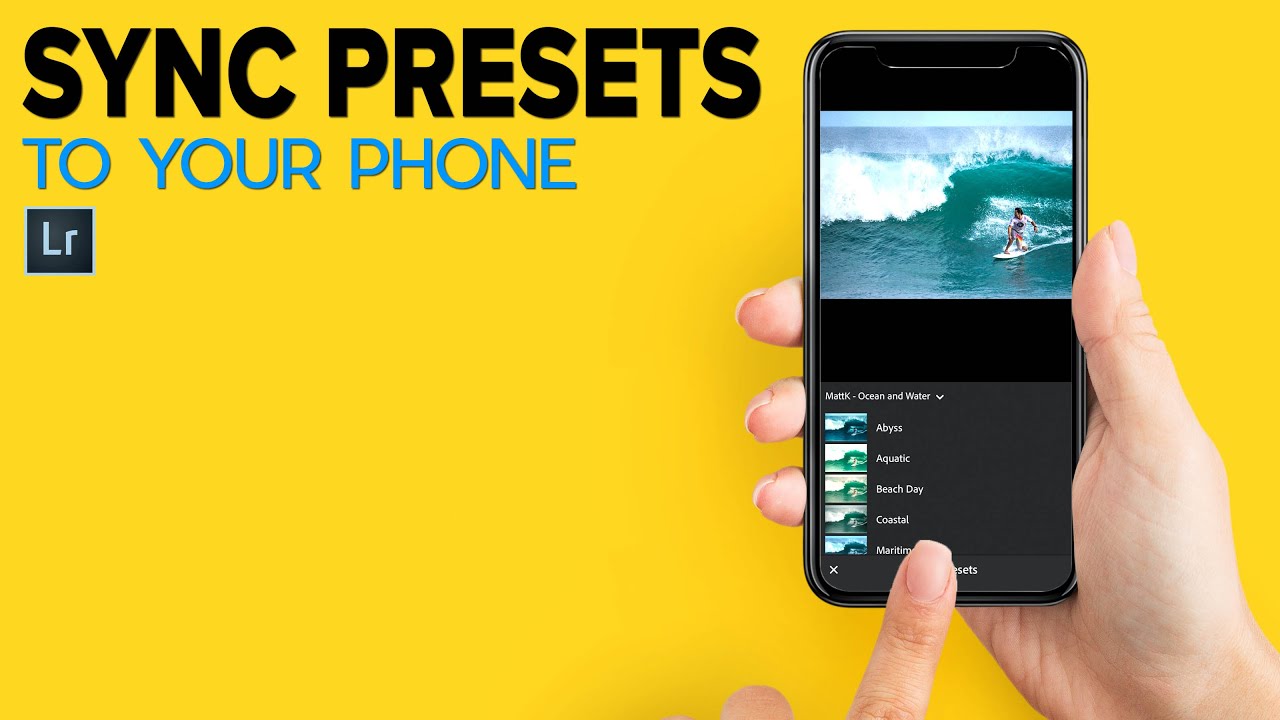
How to Sync Lightroom Presets to Your Phone (And Actually Use Them in the Field)

How to Sync Lightroom Presets to Your Phone (And Actually Use Them in the Field)

I edit a lot of images on tight deadlines. Between client reviews, revision rounds, and the general chaos of running post-production for ad agencies, consistency is everything. One of the things that quietly costs me time is the gap between my desktop editing setup and what’s available when I’m on my phone. I have years of carefully tuned Lightroom presets on my Mac. On my phone? A fraction of them, if I’m lucky.

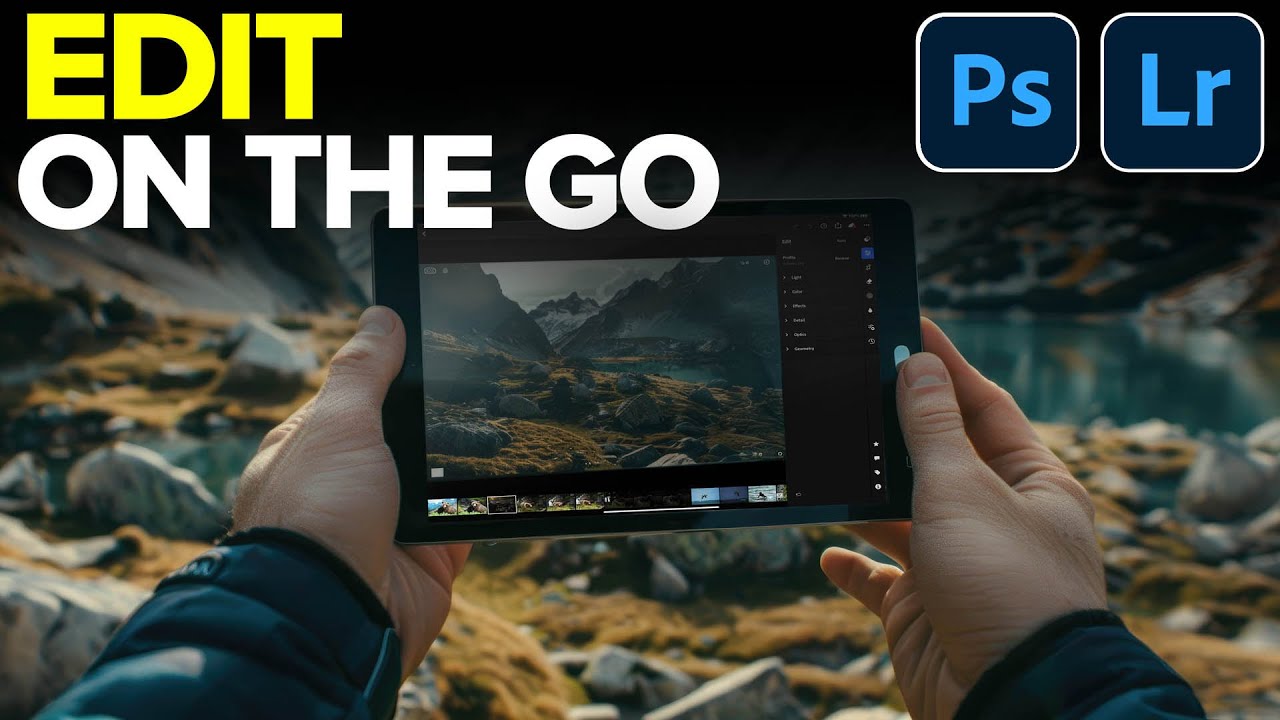
Round-Trip Editing on the iPad: How to Move From Lightroom to Photoshop (and Back) With Generative Fill

Round-Trip Editing on the iPad: How to Move From Lightroom to Photoshop (and Back) With Generative Fill

I’ll be honest: I was skeptical about tablet-based editing for a long time. My post-production work runs through carefully built systems, batch actions, and a desktop setup I’ve spent years tuning. The idea of doing serious Photoshop work on an iPad felt like a compromise. But client work doesn’t always happen at the desk, and when I started looking at what’s actually possible on the iPad with an Adobe subscription, I had to rethink that position.