There is a specific kind of frustration that comes with delivering a final gallery and realizing, two days after the client has approved everything, that the hero shot has a blink in it. Not a soft blink, not a partial squint you can handwave away, but a full closed-eye moment from the subject right at the peak expression. In commercial work, that shot is often unusable, and you either reshoot or lose it. For the past fifteen years, my answer has been to composite eyes from another frame in Photoshop, which works, but it takes time and it takes skill to match the lighting and perspective believably. So when Adobe dropped a feature called Open Eyes directly inside Lightroom Mobile, I paid attention immediately.
In this Aaron Nace (PHLEARN) tutorial, Aaron runs the Open Eyes tool on real footage from his own camera, not a staged demo, which is exactly the kind of honest test I want to see before I recommend anything to a client. Watch the full tutorial on YouTube before or after reading this breakdown. Below I’ve pulled every meaningful step and observation from the video and organized it the way I’d want to read it before deciding whether this tool earns a place in a real post-production pipeline.
Step 1: Find a Candidate Photo and Open It in Lightroom Mobile
 Lightroom Mobile grid showing multiple photos from same shoot
Open Eyes is currently a Lightroom Mobile-only feature. Desktop does not have it yet. Start by opening a photo where your subject’s eyes are fully or mostly closed. The tool is designed to detect closed eyes automatically, so it works best when the condition is obvious. Aaron’s test photo came from a tutorial recording session, which means it was a real, unplanned blink, not something set up to make the AI look good.
Lightroom Mobile grid showing multiple photos from same shoot
Open Eyes is currently a Lightroom Mobile-only feature. Desktop does not have it yet. Start by opening a photo where your subject’s eyes are fully or mostly closed. The tool is designed to detect closed eyes automatically, so it works best when the condition is obvious. Aaron’s test photo came from a tutorial recording session, which means it was a real, unplanned blink, not something set up to make the AI look good.
Having multiple photos from the same shoot loaded into your Lightroom album is not just helpful, it turns out to be functionally important, and I’ll explain why in Step 3.
Step 2: Let Lightroom Analyze the Photo and Locate the Open Eyes Option
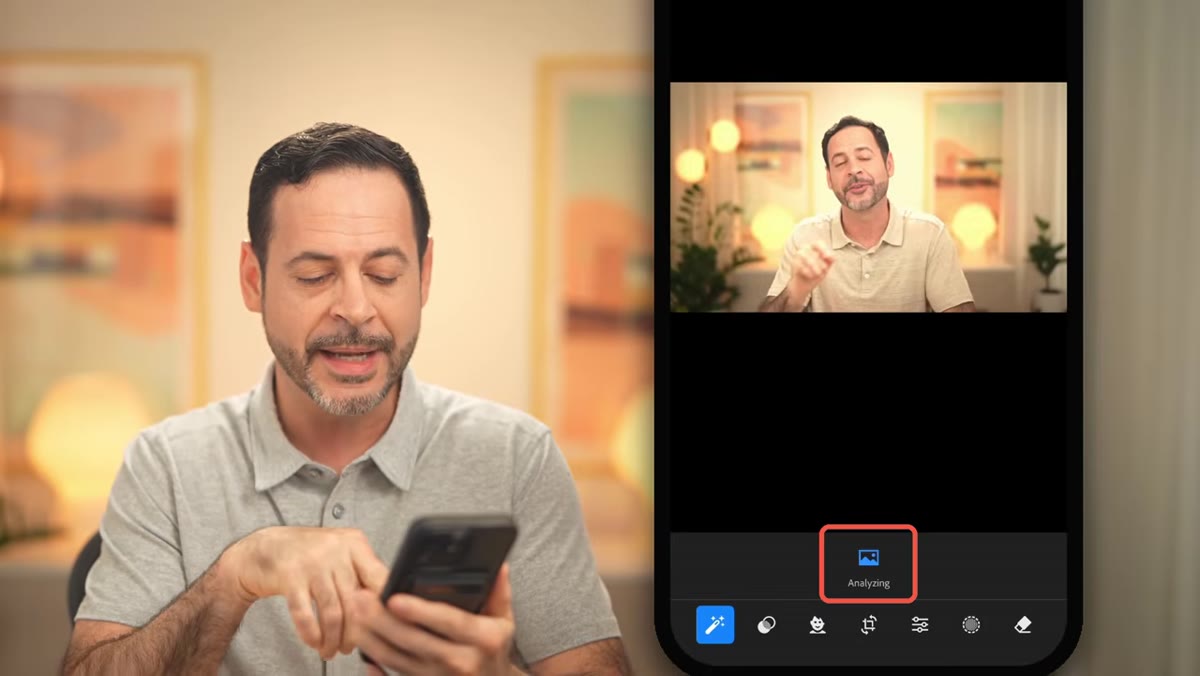 Lightroom analyzing photo, Open Eyes icon appearing at bottom of screen
After opening the photo, tap to enter the edit view. Lightroom will analyze the image automatically. If it detects that your subject’s eyes are closed, a new icon labeled Open Eyes will appear along the bottom toolbar. This does not show up for every photo, only for photos where the face analysis flags a closed-eye condition. Tap that icon to proceed to the generation step.
Lightroom analyzing photo, Open Eyes icon appearing at bottom of screen
After opening the photo, tap to enter the edit view. Lightroom will analyze the image automatically. If it detects that your subject’s eyes are closed, a new icon labeled Open Eyes will appear along the bottom toolbar. This does not show up for every photo, only for photos where the face analysis flags a closed-eye condition. Tap that icon to proceed to the generation step.
This is a Quick Actions feature, which means Adobe has positioned it as a one-tap fix rather than a manual adjustment. Whether it actually behaves that way depends on what happens next.
Step 3: Understand the Model, the Credit Cost, and the Reference Photo Search
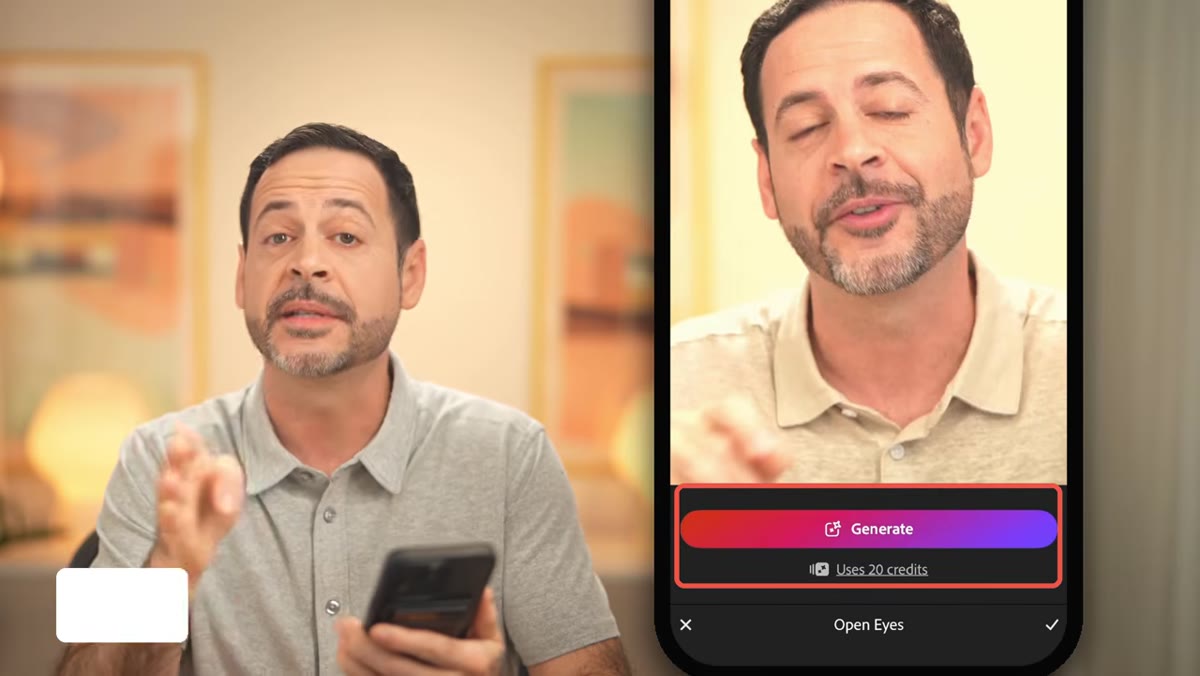 Partner model notice and credit cost displayed before generation
Before you hit generate, Lightroom shows you two things worth reading. First, this feature does not run on Adobe Firefly. It uses a partner model, specifically Google’s Nano Banana 2. Adobe being transparent about the underlying model is worth noting, especially for commercial work where clients sometimes ask about the provenance of AI-generated elements.
Partner model notice and credit cost displayed before generation
Before you hit generate, Lightroom shows you two things worth reading. First, this feature does not run on Adobe Firefly. It uses a partner model, specifically Google’s Nano Banana 2. Adobe being transparent about the underlying model is worth noting, especially for commercial work where clients sometimes ask about the provenance of AI-generated elements.
Second, the credit cost. On Aaron’s photo, the generation cost 20 credits. On a larger 24-megapixel image he tested separately, the cost jumped to 40 credits. Resolution drives the price up. Here’s the part that actually impressed me: when Lightroom detected other photos from the same shoot in the library, it added an explicit step labeled “matching their eyes.” The tool scanned the reference images to pull eye color, lighting angle, and catch light position before generating. That is a meaningfully smarter approach than just hallucinating a generic pair of eyes from scratch.
Step 4: Generate and Compare the Before and After
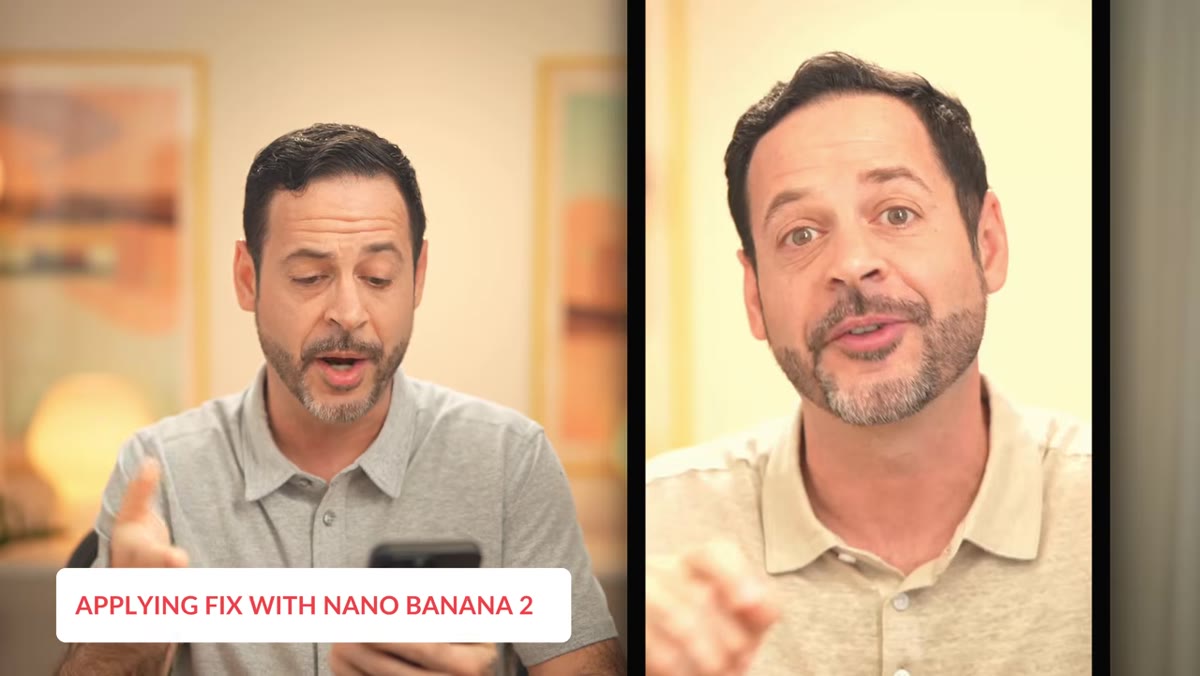 Generated open eyes result displayed, before and after toggle visible
Tap generate and wait. The result replaces the closed eyes with AI-generated open ones, and Lightroom gives you a long-press toggle to flip between the closed and open versions. Aaron’s first result showed his eyes open, but with his eyebrows raised noticeably higher than they were in the original frame. The rest of his face stayed essentially unchanged. The catch light in the generated eyes matched the scene reasonably well, and the color read as close but not exact.
Generated open eyes result displayed, before and after toggle visible
Tap generate and wait. The result replaces the closed eyes with AI-generated open ones, and Lightroom gives you a long-press toggle to flip between the closed and open versions. Aaron’s first result showed his eyes open, but with his eyebrows raised noticeably higher than they were in the original frame. The rest of his face stayed essentially unchanged. The catch light in the generated eyes matched the scene reasonably well, and the color read as close but not exact.
This is where I’d caution anyone doing close-cropped portraiture: the seams show at high zoom. The tool is not trying to be invisible at 200% view. But at delivery resolution for a group shot or a mid-distance portrait, the result holds up.
Step 5: Run It a Second Time and Compare Both Generations
 Second generation result shown, eyebrows not raised this time
If you dislike the first result, you can reset and generate again. That costs another 20 credits, so factor that into your mental budget before you start clicking. Aaron ran a second generation and got a noticeably different result: this time the eyes opened but the eyebrows stayed in their original position, which is closer to what most people’s faces actually do during a normal blink.
Second generation result shown, eyebrows not raised this time
If you dislike the first result, you can reset and generate again. That costs another 20 credits, so factor that into your mental budget before you start clicking. Aaron ran a second generation and got a noticeably different result: this time the eyes opened but the eyebrows stayed in their original position, which is closer to what most people’s faces actually do during a normal blink.
Comparing the two generations side by side with Aaron’s real eyes from another frame in the sequence is the most instructive part of the whole video. Neither generated version is a perfect match, but they’re both plausible. The variation between generations matters because it means the tool isn’t deterministic. You may need to spend 40 credits to land on the version that looks most natural.
Step 6: Test It on a Group Shot
 Group shot with one subject’s eyes closed being processed
Aaron also tested the feature on a group photo where one person’s eyes were shut. This is arguably the strongest use case. When you’re delivering 40 frames from a family session or a brand event, you don’t always have a clean alternative frame for every person in a wide group shot. The Open Eyes tool handled the group photo example with the same reference-matching logic, pulling from other shots to approximate the closed-eye subject’s real eye appearance.
Group shot with one subject’s eyes closed being processed
Aaron also tested the feature on a group photo where one person’s eyes were shut. This is arguably the strongest use case. When you’re delivering 40 frames from a family session or a brand event, you don’t always have a clean alternative frame for every person in a wide group shot. The Open Eyes tool handled the group photo example with the same reference-matching logic, pulling from other shots to approximate the closed-eye subject’s real eye appearance.
For group shots at web or social resolution, this is genuinely practical. For a billboard or a large print, I would still composite manually in Photoshop.
My Take: Where This Fits in a Real Workflow
I keep a spreadsheet of every hour I’ve saved through automation and batch systems. I’m not adding Open Eyes to that column yet, but I’m not dismissing it either. For a working photographer doing volume portraiture, events, or family sessions, spending 20 credits to salvage an otherwise-perfect frame is a reasonable trade. The limitation I’d flag for commercial photographers is the credit variability at high resolution and the fact that close crops will show the generation artifacts in a way that most clients will notice on a retouched beauty shot.
The honest framing Aaron closes with is also worth sitting with: would you use this on someone else’s photo without telling them and present the AI-generated eyes as the real ones? That’s a question your client contracts and your own editorial standards need to answer, not the software.
The single most important thing I took from this tutorial is that the reference photo matching logic is what separates Open Eyes from a dumb inpainting tool. If you’re going to use this feature, load multiple photos from the same shoot into your Lightroom album before you run it. That step alone gives the model something real to work from rather than a statistical average of what human eyes look like.
Watch the full tutorial on YouTube to see the real-eyes-versus-generated-eyes comparison Aaron walks through frame by frame. It’s the clearest demonstration of what this tool actually produces under test conditions.
Comments
Leave a Comment