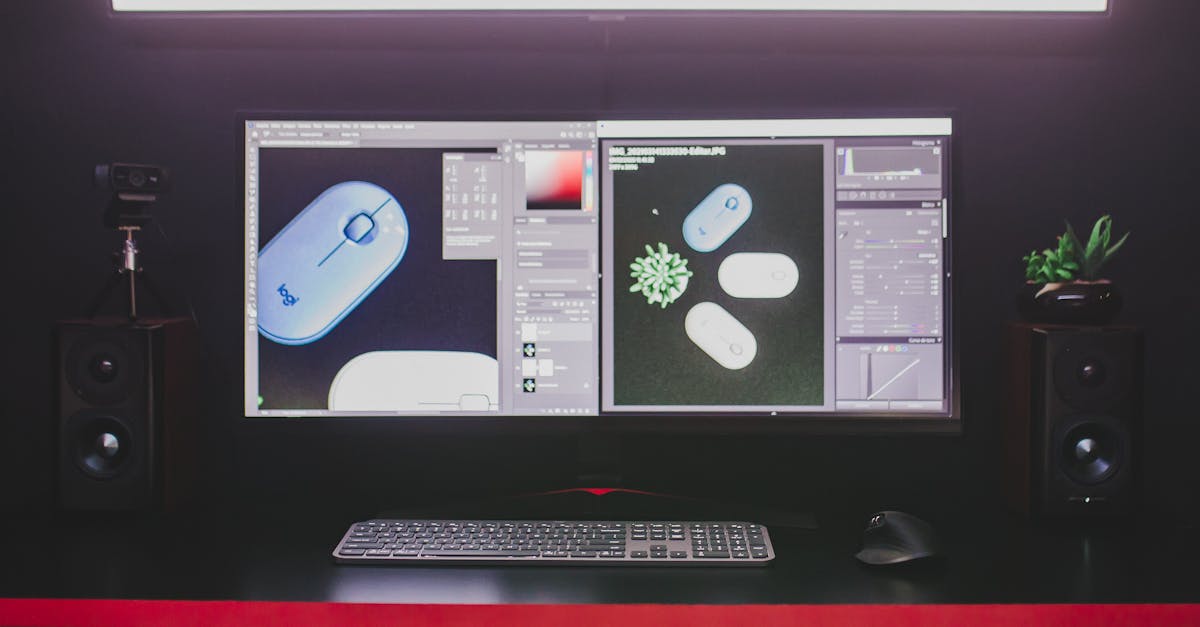
Photoshop Actions: The Workflow Game-Changer I Wish I’d Discovered Earlier
I spent three years doing the same thing every single day: open an image, resize it to 1200x800, add a subtle vignette, boost saturation by 12%, and export as JPEG. Three years of mindless clicking. Then I discovered Photoshop actions, and honestly, I felt a bit foolish for not exploring them sooner.
If you’re not using actions yet, you’re leaving serious productivity on the table. Let me show you why they matter and how to actually implement them into your workflow.
What Photoshop Actions Actually Do
Actions are essentially macro recordings—they capture every step you take in Photoshop and replay them identically on any image you feed them. But here’s what makes them genuinely powerful: they’re not just for simple tasks. I use actions for complex processes involving layer adjustments, filter stacks, text placement, and batch exports.
The magic happens when you combine them with batch processing. Record an action once, then apply it to 500 images in an afternoon while you grab coffee. That’s not hyperbole—that’s literally how it works.
Recording Your First Action (The Right Way)
Open the Actions panel (Window > Actions) and hit that little record button. Here’s where most people stumble: you need to think about flexibility before you hit record.
If you’re resizing an image, don’t just drag the corner—go to Image > Image Size and enter specific dimensions. Actions record exact pixels, not relative percentages. If you’re applying a levels adjustment, use the Levels dialog rather than quick adjustments. The more precise your clicks, the more reliable your action becomes.
One trick I always use: pause the recording when you need to make a decision. If your action needs to handle images of different sizes, record it to stop and ask you for input mid-process. This keeps actions smart without making them overly complicated.
Building Actions for Your Real Workflow
Generic actions are fine for learning, but they’re useless if they don’t match your actual process. I record actions for:
- Product photography prep: resize, color correct with curves, sharpen with Unsharp Mask, add a drop shadow, export at multiple sizes simultaneously
- Social media batching: specific dimensions per platform, text overlay templates, optimized export settings
- Client deliverables: watermarking, renaming conventions, folder organization
The second you start customizing actions to your exact specifications, you’ll actually use them. That’s the critical difference between knowing about actions and leveraging them.
The Batch Processing Game-Changer
Here’s where actions become truly transformative: Batch Processing (File > Automate > Batch). Select your action, point it at a folder of images, set your output destination, and walk away.
I batch-process 50-100 images weekly, which would consume 4-5 hours of manual work. With batch processing, it takes 10 minutes of setup and happens overnight. Even if an action saves you 5 minutes per image, that’s life-changing at scale.
One critical setting: enable “Suppress File Open Dialogs” if you’re processing images with different dimensions. This prevents your batch from stalling when it encounters a file that doesn’t match your action’s expectations.
Common Mistakes I’ve Made (So You Don’t Have To)
Deleting step mistakes mid-recording: You’ll mess up. Don’t re-record the entire action—use the Delete icon on specific steps instead.
Hardcoding file paths: If your action references a specific file or folder, it won’t work on other systems. Use relative references when possible.
Recording at 100% zoom: Actions capture zoom levels. Record at 100% zoom so your action works consistently across different monitor setups.
The Real ROI
I’m not going to claim actions are exciting technology. They’re not flashy. But the time I’ve reclaimed—roughly 6-8 hours per week—lets me focus on the actual creative work that matters: composition, lighting, and client strategy.
Start small. Record one action for a task you repeat weekly. Use it consistently for a month. Once you feel the efficiency bump, you’ll be building actions for everything.
That’s the real power here—not the technology itself, but what you do with the time you get back.
Comments (3)
Tested this with a few of my older photos and I'm genuinely impressed.
Is there a Lightroom equivalent for this or is it strictly a Photoshop technique?
Good stuff. Photoshop can do wonders when you understand the fundamentals like this.
Leave a Comment