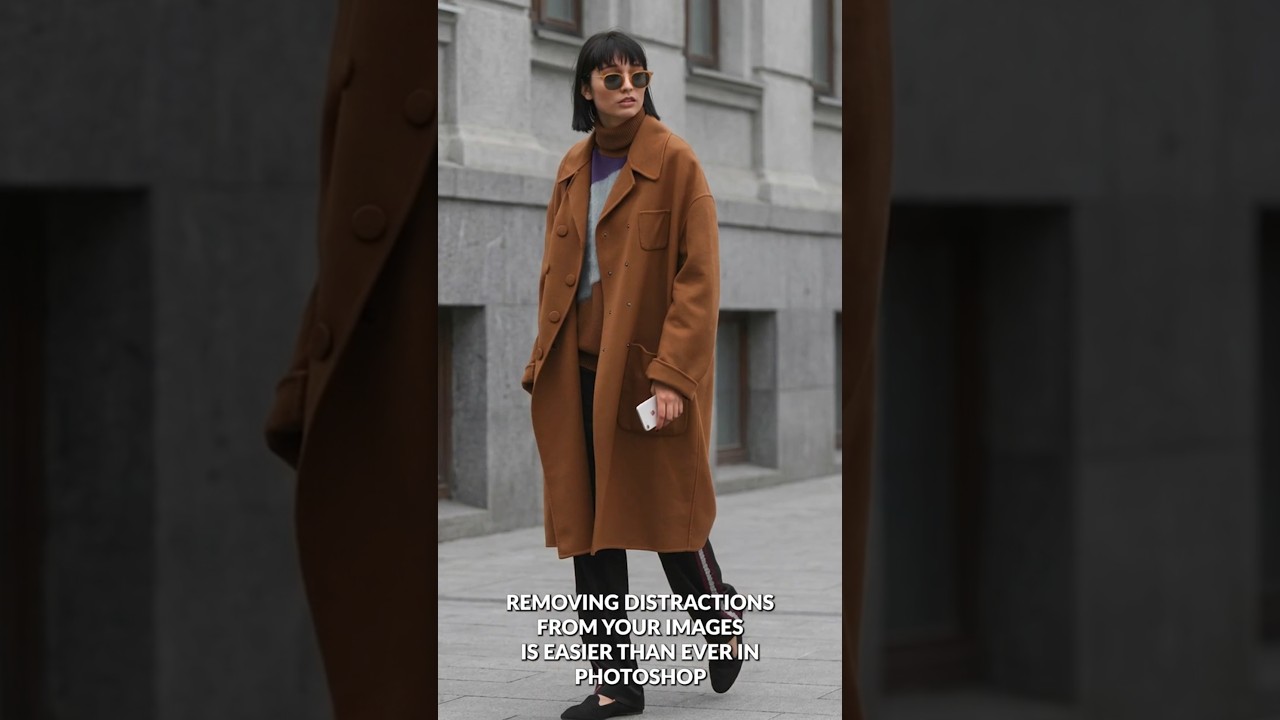
The Game-Changer for Photo Cleanup
I’ve spent years testing different Photoshop retouching workflows, and I can tell you without hesitation: the method Aaron Nace demonstrates in this tutorial is genuinely one of the fastest ways to remove distractions from your images. What used to take 15-20 minutes of careful cloning and healing now takes just a couple of clicks. In this excellent tutorial, Aaron Nace (PHLEARN) reveals exactly how to leverage Photoshop’s Generative Fill with the Selection Brush tool to eliminate unwanted elements in seconds.
The beauty of this approach is its simplicity. There’s no complex masking, no blending mode juggling, and no need to be a Photoshop wizard. If you can paint with a brush, you can remove distractions.
What You’ll Need
Before diving in, make sure you’re working with a recent version of Photoshop that includes the Generative Fill feature (powered by Adobe’s Firefly AI). You’ll also want a stable internet connection, since the generative processing happens in Adobe’s cloud. Beyond that, you just need an image with some unwanted elements you’d like to remove.
Step-by-Step: The Basic Method
Step 1: Select the Selection Brush Tool
Navigate to your toolbox and choose the Selection Brush tool. This is your primary weapon for marking distractions. The tool works exactly like it sounds—you paint over the areas you want to remove.
Step 2: Paint Over Distractions
This is where precision matters, but not in the way you might think. You don’t need surgical accuracy; you just need to cover the distraction. Paint over unwanted elements like people, signs, power lines, or debris. Here’s my tip: don’t just paint the main object. If there are shadows cast by the distraction, paint over those too. The AI performs better when you give it the full context of what to remove, including environmental clues like shadows.
Step 3: Access Generative Fill
Once you’ve painted your selection, look at the contextual taskbar that appears. Click on “Generative Fill.” This is the magic button that tells Photoshop to use AI to intelligently remove what you’ve selected and fill it in naturally.
Step 4: Select Your AI Model
In the model selector, choose “Firefly Image Model 3” (or the latest version available). This ensures you’re using Adobe’s most advanced generative technology.
Step 5: Generate and Review
Click generate and wait a few seconds. Photoshop will produce a cleaned-up version of your image. You’ll typically see multiple variations to choose from. I always recommend reviewing each one carefully, as sometimes the AI creates slightly different results, and one variation will look more natural than another.
The Iterative Approach: When You Miss Spots
Here’s something Aaron demonstrates that I find incredibly valuable: you don’t have to get it perfect the first time. In fact, it’s almost impossible to spot every distraction in one pass. What matters is that this workflow makes fixing those missed spots trivial.
If you notice additional distractions after your first generation, simply grab the Selection Brush tool again and paint over the newly discovered problem areas. Click Generative Fill again and generate. There’s no penalty for multiple passes—each iteration is just as fast as the first.
I’ve found that breaking the cleanup into multiple small selections often produces better results than trying to remove everything at once. The AI seems to handle focused, smaller areas with more precision than massive selections.
The Advanced Approach: Full Image Context
Aaron also demonstrates an alternative method that’s worth understanding: selecting your entire image first. Here’s how it works:
Go to Select > All to select your complete image, then click Generative Fill. When you do this without painting specific areas, you can use the prompt box to instruct Photoshop on what you want removed. This approach gives the AI more context about your entire scene, which can sometimes produce more natural results for complex removals.
The trade-off? Less precision about exactly what gets removed. I typically use this method when I’m removing multiple types of distractions and want the AI to use its judgment about what should go.
My Honest Take on Results
I need to be upfront: Generative Fill isn’t perfect. Sometimes the background reconstruction looks a bit odd or incomplete, especially in complex scenes with intricate details like scaffolding, buildings, or dense foliage. When that happens, you have options. You can regenerate for different variations, or you can combine this method with traditional healing tools for problem areas.
What impressed me most is the speed-to-quality ratio. Even if you need to do minor cleanup afterward, you’re still saving substantial time compared to manual retouching.
Why This Matters for Your Workflow
This method represents a genuine shift in how we approach photo editing. Rather than spending hours on meticulous manual cleanup work, you’re now using AI as your primary tool and doing manual refinement only where needed. That’s workflow optimization in its purest form.
For photographers working with a high volume of images—wedding photographers, real estate shooters, content creators—this approach can shave hours off your editing time each week.
Take It Further
Want to incorporate this into an even more efficient workflow? Aaron Nace and the team at PHLEARN offer deeper training through their 30 Days of Photoshop program (free with a calendar and daily schedule) and PHLEARN PRO, which includes 200+ courses, 800+ presets and actions, and priority customer support.
Watch the Full Tutorial
The techniques I’ve outlined here only scratch the surface. Aaron’s 2-minute video packs in real examples with actual before-and-after results that really drive home how powerful this tool is.
Watch the full tutorial here and see the Generative Fill method in action. Pay special attention to how Aaron handles the second example with the construction equipment—his choice to regenerate and try the full-image selection method shows the practical problem-solving that makes this workflow so valuable.
Your future editing sessions will thank you for the time you save.
Watch the full video below:
Comments (2)
Love how you break this into manageable steps instead of one giant wall of text.
Do you have any tips for applying this to landscape work?
Leave a Comment