I process a lot of product and advertising imagery. Hundreds of frames sometimes, all moving through the same pipeline, all needing clean backgrounds and distraction-free subjects. The thing that kills my pace is not the big compositing work. It is the small stuff. A shadow in the wrong place. A stray piece of packaging. A reflection on a floor that nobody caught on set. These are the fixes that used to cost me twenty minutes per image if I was not careful, and they add up fast. I actually track time saved by tools and techniques I adopt into my workflow. When something legitimately cuts that kind of friction, I pay attention.
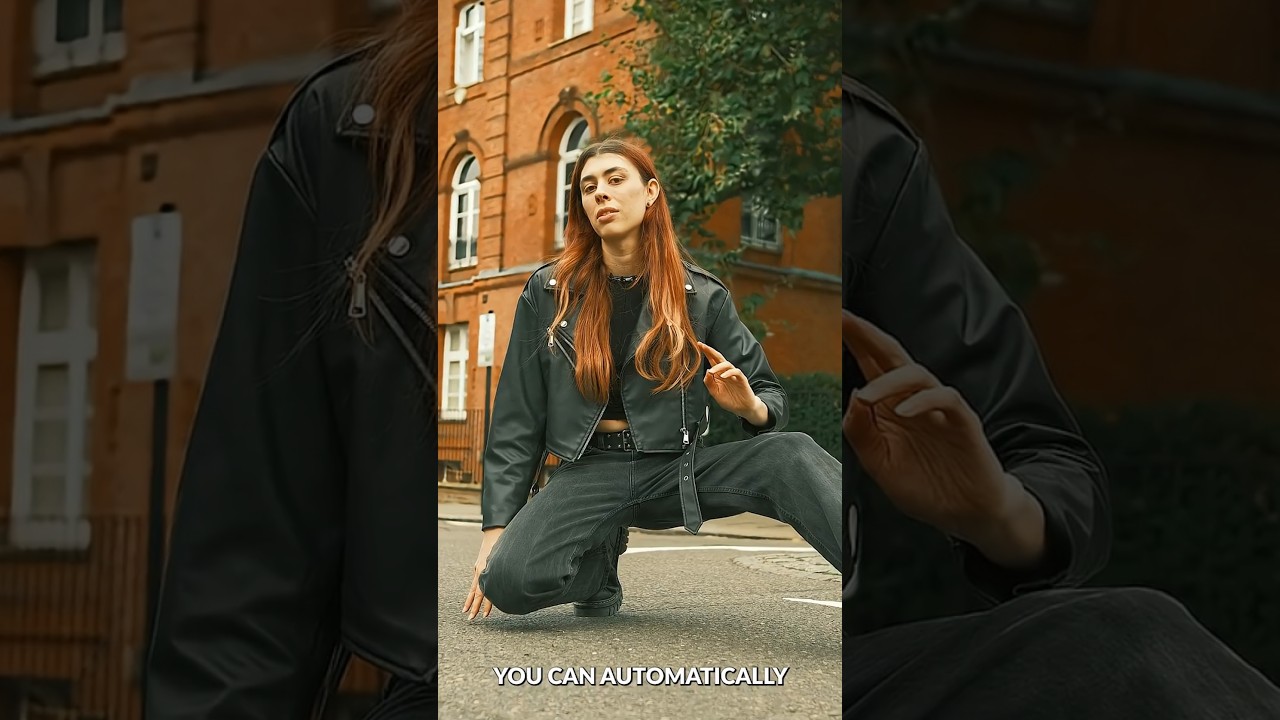
Which is why I stopped mid-morning last week and watched Aaron Nace’s latest one-minute tutorial from PHLEARN twice before moving on to anything else.
What the Updated Remove Tool Actually Does Differently
In this Aaron Nace (PHLEARN) tutorial, the focus is on what has changed in the Photoshop 2026 update to the Remove Tool. The Remove Tool itself is not new, but the update meaningfully improves how the AI handles context when filling in the area you remove. The old version was useful for simple, low-stakes removal. The new version works with a much stronger understanding of the surrounding image, which means the fill looks like it belongs rather than looking like a guess.
The practical effect is that you can remove objects in a single brush pass and get a usable result without a follow-up healing or clone step. For quick edits, that is a significant difference. For high-volume work, it is potentially a workflow-level change.
How to Use It: Step by Step Without the Video
If you want to follow along without watching, here is the technique as Aaron demonstrates it:
Open your image and select the Remove Tool from the toolbar. It sits in the same cluster as the Healing Brush and Patch Tool. Make sure you are working on a duplicate layer or a smart object so you have a non-destructive fallback.
With the Remove Tool selected, simply paint over the object or distraction you want to eliminate. You do not need to be precise. The AI is looking at the surrounding context, so a rough brush stroke covering the offending area is enough. Do not try to paint the exact outline. Give the tool a little room and let the model work out the edges.
Release the brush and Photoshop processes the removal. With the updated model, Aaron shows this happening in one pass on objects that would have previously required multiple attempts or manual cleanup after. The fill respects the texture and tone of the background around the removed object.
For larger removals, you can make multiple strokes in sequence before releasing. The tool processes each stroke with context from the whole image, not just the area you painted. That matters a lot when the object you are removing sits near a complex background like a textured surface or a scene with depth variation.
Where This Saves Real Time on Commercial Work
The use case Aaron demonstrates is a relatively clean editorial image, but the technique scales directly to the kind of work I handle regularly. On product shots, you constantly deal with small surface distractions, dust specs the stylist missed, or shadow edges from a light that was slightly off position. Previously I would jump between the Healing Brush and the Clone Stamp depending on what the background needed. That decision alone costs time because you are reading the image, choosing a tool, adjusting brush size and hardness, sampling, and then checking the result.
With the updated Remove Tool, that whole sequence compresses into: paint over it, done. I tested it on a batch of cosmetics imagery over the past few days and the results held up without cleanup on roughly 80 percent of the small removals I would typically do. That is not a number I expected to hit this quickly.
The One Limitation Worth Knowing Before You Rely on It
This tool is excellent for removing objects against reasonably consistent backgrounds. Where it still struggles is highly structured geometry. Straight lines, grid patterns, tiled floors with clear perspective lines, architectural elements. The AI fill on those surfaces can produce a result that looks correct at a glance but falls apart when you zoom in or when the image goes to print.
I ran into this on a retail store interior shot where I needed to remove a sign from a tiled wall. The tile grout lines did not continue cleanly through the fill area. It was close, but not production-ready. For that kind of removal I still reach for the Patch Tool with Content-Aware or do a manual clone along the geometry. The Remove Tool got me 90 percent of the way there and gave me a better base to work from, so it still saved time. But I would not hand it a straight-line problem and expect perfection without checking.
The Single Thing That Changes Your Workflow
The updated Remove Tool is worth adding to your primary retouching sequence, not as a replacement for the Healing Brush and Clone Stamp, but as the first pass you try before reaching for those tools. You will be surprised how often it is the only pass you need.
Watch Aaron Nace’s full tutorial on PHLEARN for the visual demonstration, including how the tool handles more complex removal scenarios in the extended episode linked in the video description.
Comments
Leave a Comment