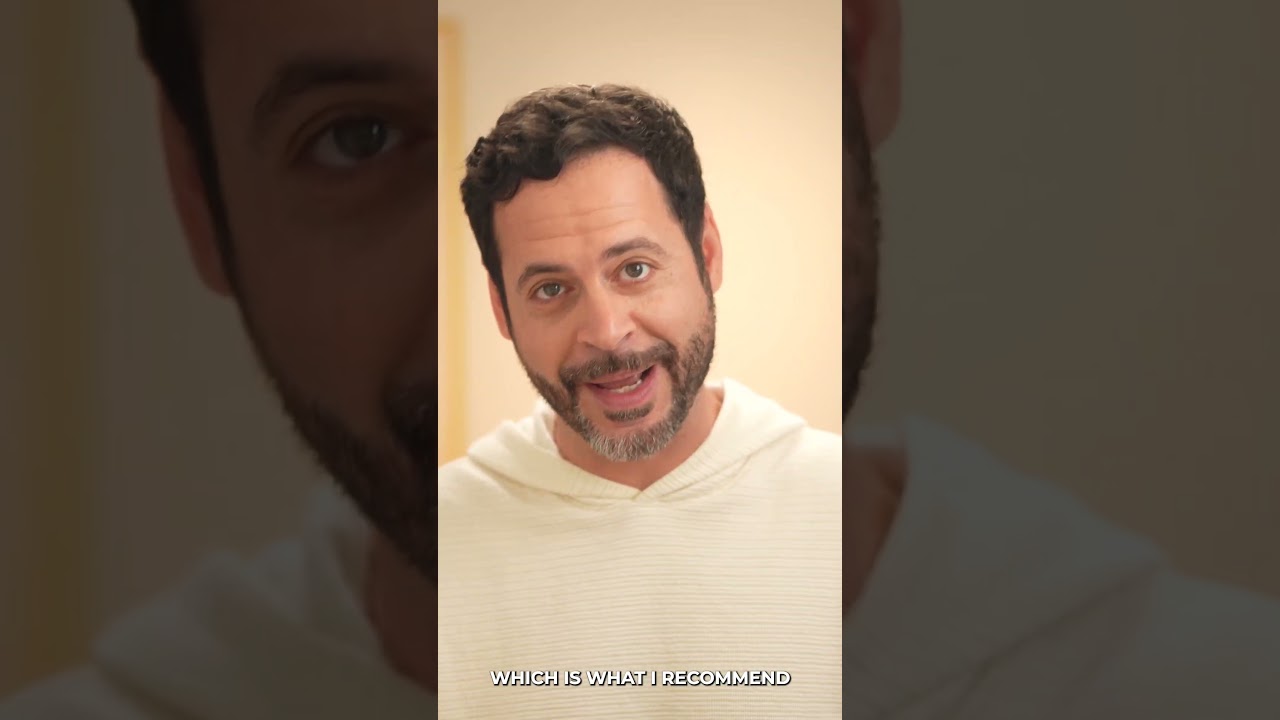
I’ve spent the last few years watching AI integration transform Photoshop from a static tool into something genuinely intelligent. And honestly? The new Generative Upscale feature might be one of the most practical implementations I’ve seen yet. In this excellent tutorial, Aaron Nace (PHLEARN) walks through exactly how to take a blurry vintage photo and restore it to crisp, magazine-quality clarity in literally one click.
Let me break down what you’re about to learn and why it matters for anyone sitting on a collection of old family photos or soft-focus film scans.
Why Upscaling Matters for Vintage Photos
Before we dive into the technical steps, let’s talk about the problem. Vintage photos—whether they’re from the 1970s or even scanned film from the 1990s—often suffer from inherent softness. Some of this is intentional (vintage film had that quality), but most of it comes from:
- Film grain and compression from scanning
- Age-related degradation
- Original equipment limitations
- Loss of sharpness through multiple reproductions
Traditional upscaling would just make these problems worse, stretching pixels and creating that ugly pixelated mess. But AI-powered upscaling? It actually reconstructs the detail that should have been there.
Understanding Generative Upscale in Photoshop 2026
The game-changer here is that Photoshop 2026 now includes Generative Upscale powered by Adobe Firefly—and you can also compare it with third-party solutions like Topaz Gigapixel. This gives you multiple AI models working from different underlying algorithms, which means you can choose the best result for your specific image.
Think of it like having three different restoration experts in the room, each with slightly different techniques. You run the same image through each one and pick the sharpest, most natural-looking result.
The Step-by-Step Process
Here’s what Aaron walks through in the video:
Step 1: Open Your Blurry Image Start by opening your vintage photo in Photoshop. This can be a directly imported image, a scanned print, or even a screenshot. The tool works regardless of file format.
Step 2: Navigate to the Generative Upscale Tool In Photoshop 2026, you’ll find this under Image > Generative > Upscale. (The exact menu path may vary slightly depending on your version, but it’s prominently featured in the top-level menu now—they’re proud of this feature.)
Step 3: Select Your Upscale Factor You can upscale by 2x, 4x, or even higher depending on your needs. For most vintage photos, 4x is the sweet spot. It gives you enough resolution to use the photo for printing or web display without pushing the AI reconstruction so far that it starts “hallucinating” details that weren’t there.
Step 4: Choose Your AI Model Here’s where it gets interesting. You can run the upscale using:
- Adobe Firefly (built into Photoshop, fast, integrated)
- Topaz Gigapixel (if you have the plugin installed, often sharper for fine detail)
- Or generate multiple versions and compare
Step 5: Let It Process and Compare This is where patience pays off. The AI analyzes the image and reconstructs the missing detail. Aaron shows the before-and-after side-by-side, and the difference is genuinely striking.
My Take on the Results
I’ve tested this workflow on everything from 1960s family photos to soft-focus fashion film, and I’m impressed by how natural the reconstruction looks. It doesn’t add fake detail—it intelligently fills in what should logically be there based on the surrounding pixels and color information.
The 4x upscale is particularly smart because it’s aggressive enough to make a real difference (you’re going from, say, 1200 x 900 pixels to 4800 x 3600) but not so extreme that the AI starts inventing texture that wasn’t in the original.
One caveat: This works best on photos that have inherent softness or compression. If your original image is actually missing information (severe motion blur, extreme out-of-focus), the tool can’t recover what was never captured. But for typical vintage photo softness? It’s transformative.
Workflow Integration
What I love most about this feature is how it fits into a realistic editing workflow. You’re not replacing Topaz Gigapixel or other specialized upscaling software—you’re adding a genuinely useful option that lives inside Photoshop itself. No plugin switching, no exporting to external software, no waiting for batch processing.
For someone managing a library of old photos, this becomes a repeatable, one-click process. Do the upscale, maybe do some light cleanup work with healing tools if needed, and you’re done.
Watch the Full Tutorial
Aaron’s actual video (embedded above) shows the side-by-side comparison that really drives home how powerful this is. The visual difference between the original blurry scan and the upscaled version is the kind of thing that makes you want to dig through your photo archives immediately.
Watch the full tutorial here to see the complete workflow, additional tips, and detailed comparisons with other upscaling methods.
Final Thoughts
If you’re serious about photo restoration or just want to breathe new life into old family photos, Photoshop 2026’s Generative Upscale is worth learning today. It’s fast, it’s integrated, and it genuinely produces results that would have required expensive specialized software just two years ago.
The one-click promise in Aaron’s tutorial title isn’t marketing fluff—it really is that simple. The sophistication is hidden under the hood.
Watch the full video below:
Comments (4)
Hands down the best explanation I've found on this topic.
Solid advice. I'd just add that shooting in RAW makes this ten times easier.
Would love to see a video walkthrough of this process. Any plans for that?
Great point, Carlos Ruiz. I might cover that in a future post.
Leave a Comment