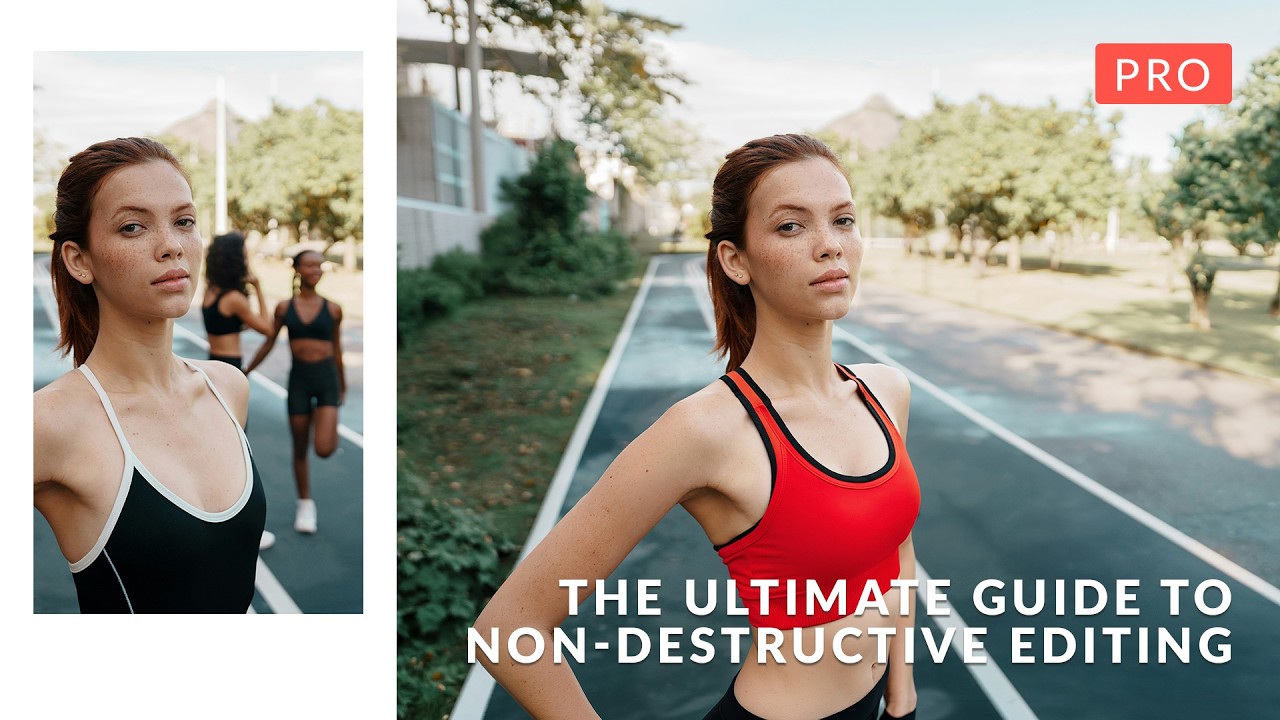
I’ll be honest: when I first started working in Photoshop, the fear of permanently destroying my work kept me from experimenting. One wrong flatten operation and hours of effort could vanish. That anxiety is exactly what In this excellent tutorial, Aaron Nace (PHLEARN) addresses head-on with “The Ultimate Guide to Non-Destructive Editing.” After diving deep into this course, I want to break down the key concepts and workflow strategies that transformed how I approach every Photoshop project.
Why Non-Destructive Editing Matters
The fundamental principle here isn’t just about safety—it’s about freedom. When you work non-destructively, you’re essentially building a time machine into your Photoshop file. Every adjustment layer, mask, and smart object becomes a decision you can revisit, modify, or completely reverse at 3 AM when your client sends feedback.
Think about it this way: destructive editing is like committing to permanent markers on your photograph. Non-destructive editing is like using Post-it notes that you can rearrange endlessly. The difference in your creative confidence is enormous.
The Unbreakable Blueprint: File Formats Explained
Aaron starts with the fundamentals, and I appreciate that approach. He contrasts flattened files (like JPEGs) with layered files (PSD). Here’s the critical difference:
JPEG files compress all layers into one, stripping away your ability to edit individual elements. They’re final products, not working files.
PSD files preserve every layer, adjustment, and mask you create. This is your creative workspace where non-destructive editing happens.
The “unbreakable blueprint” Aaron describes is a PSD structure where you can toggle every layer on and off and theoretically get back to your untouched original photograph. I’ve found that naming layers clearly and organizing them into logical groups (I use folders like “Retouching,” “Color Grading,” “Effects”) makes this blueprint actually maintainable when you come back to a file months later.
Building Your Professional Workflow
Here’s where the course gets practical. Aaron walks through a complete workflow that might look like this:
- Import your source image (JPEG, RAW, or PSD)
- Create your adjustment and effect layers while keeping originals intact
- Save as a layered PSD with all your working files
- Export a flattened version for delivery (social media, print, client proof)
This separation between your working file and delivery file is game-changing. I can’t stress enough how many headaches this prevents. Your client requests a tweak? You’ve got the PSD with every layer ready to adjust. No re-editing from scratch.
The RAW Editing Pipeline: Lightroom to Photoshop and Back
If you shoot RAW (which you should be), Aaron demonstrates two approaches:
The Lightroom-Photoshop Bridge: Edit your RAW in Lightroom first, round-trip to Photoshop for detailed work, then back to Lightroom for final adjustments. This workflow respects both tools’ strengths—Lightroom’s speed for global adjustments, Photoshop’s precision for local work.
The Photoshop-Native Approach: If you prefer staying in Photoshop, you can edit RAW files directly using Photoshop’s Camera Raw Filter as a smart object. This keeps your RAW data editable at every stage.
I personally use the bridge method because Lightroom’s interface is cleaner for batch adjustments, but the Photoshop-native approach appeals to editors who want everything in one application. Neither is wrong—pick based on your natural workflow rhythm.
Mastering Masks: The Real Power Move
Masks are where non-destructive editing transcends safety and becomes artistry. Aaron covers three mask types:
Layer Masks let you selectively hide or reveal parts of a single layer. Need to blend two exposures? Mask one in gradually.
Clipping Masks restrict an adjustment layer’s effect to only the layer below it. Want to adjust color on just your subject? Clip your adjustment to that layer.
Group Masks apply effects to multiple layers simultaneously while keeping them organized.
The example Aaron demonstrates—changing a sky while preserving your subject, then clipping gradients to logos—shows mask sophistication that separates amateurs from professionals. When you realize you can paint in black and white on a mask to selectively apply or hide effects, a light bulb moment happens.
Pro tip from my own experience: use layer masks with soft brushes and reduced opacity when blending. Hard edges betray your edits; soft transitions sell them.
What’s Included: Your Learning Toolkit
This course ships with substantial assets: 29 JPEG sample images, 7 RAW files, and 16 pre-built PSDs. That’s not just filler—that’s the ability to follow along exactly as Aaron demonstrates, then deconstruct finished files to understand technique. I recommend opening those PSD files and toggling layers on and off to see how the final effect was built. Reverse-engineering is underrated as a learning method.
Expanding Your Non-Destructive Practice
Beyond what’s in the tutorial, I’ve discovered that consistent naming conventions matter enormously. Instead of “Layer 1 copy,” I name layers “Sky Replacement,” “Dodge & Burn,” “Color Grade.” Future-you will appreciate clarity.
Also, use adjustment layers (Curves, Levels, Hue/Saturation) instead of editing pixels directly. They’re equally non-destructive but more flexible.
The Bottom Line
Non-destructive editing isn’t just a technical practice—it’s a mindset that encourages experimentation without fear. You’ll try bolder effects, trust your instincts more, and spend less time stressing about irreversible mistakes.
Ready to transform your Photoshop workflow? Watch Aaron’s complete tutorial above. The 10 sections systematically build from foundational concepts to advanced masking and compositing. Whether you’re retouching portraits, compositing complex scenes, or grading color, the principles apply universally.
If you want deeper access to professional Photoshop education, PHLEARN PRO offers 200+ courses covering everything from Lightroom to special effects, plus 500+ actions and presets. Use code PRO26 for 20% off.
Your future edits will thank you for learning this properly now.
Comments
Leave a Comment