I’ve been doing post-production work for commercial clients for fifteen years. Portrait compositing, product retouching, ad-ready skin work. And there’s one problem that has eaten more of my billable hours than almost anything else: isolating a portrait subject from a busy background when the original shot has mediocre depth of field.
You know the scenario. The photographer shot on a crop sensor, or the client approved a frame where the background separation is just… fine. Not bad enough to reshoot. Not good enough to look polished. And suddenly you’re painting masks by hand, chasing stray hairs, arguing with Select Subject, burning time.
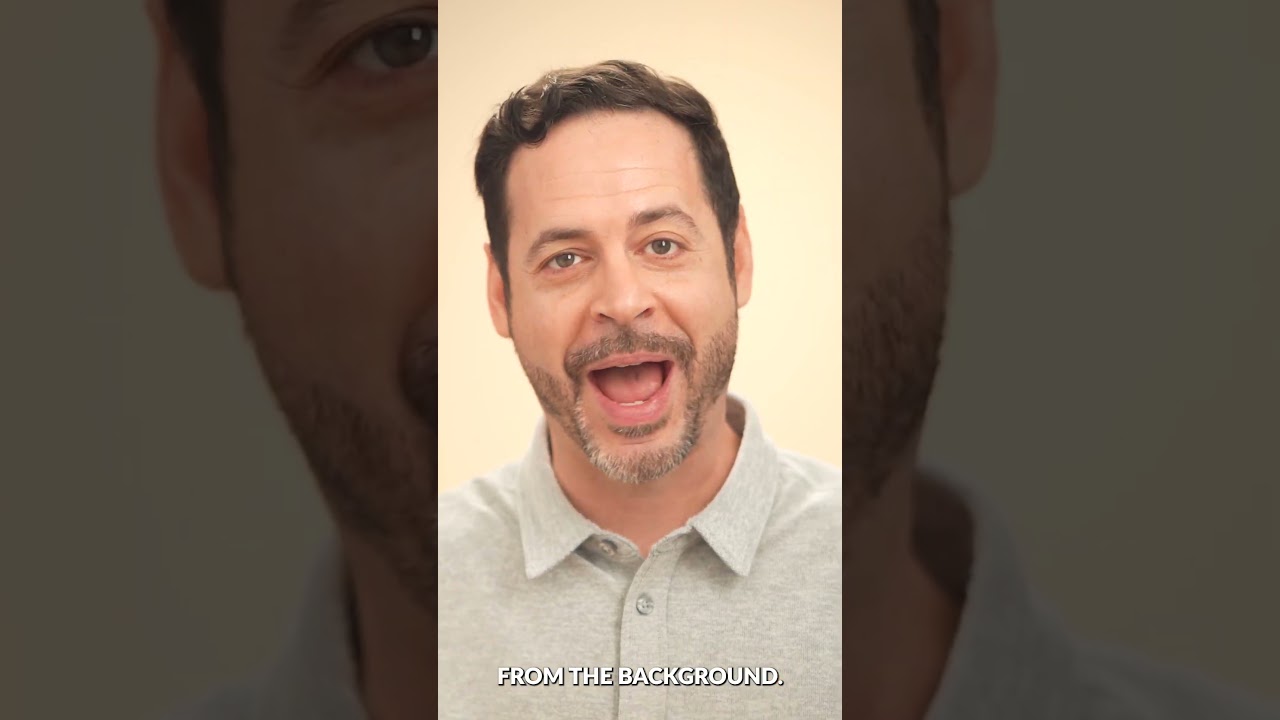
A few weeks back I hit that exact situation on a headshot batch for a mid-size agency client. That’s when I dug into this Aaron Nace (PHLEARN) tutorial on AI depth masking in Camera Raw, and it tightened up my workflow in ways I didn’t expect.
Why Camera Raw Is Doing the Heavy Lifting Here
The core insight in the tutorial is that Camera Raw’s AI masking tools, specifically the Depth Range mask, can read spatial depth information embedded in or inferred from your image and use it to generate masks that separate near and far elements. This isn’t a luminosity mask or an edge detection mask. It’s working from a fundamentally different data layer, which means it handles soft edges, overlapping tones, and similar colors between subject and background far better than most selection methods.
The workflow starts by opening your image as a Smart Object in Photoshop before going into Camera Raw. That single decision is what keeps everything non-destructive. You’re not flattening, not rasterizing. Every adjustment you make in Camera Raw stays editable indefinitely, and none of it permanently alters your pixel data.
The Depth Mask Setup, Step by Step
Inside Camera Raw, navigate to the Masking panel. Create a new mask and choose Depth Range from the mask type options. Camera Raw will generate a depth map of your image, and you’ll see a two-handled range slider that controls which depth zone is selected. Drag the handles inward from the far end to isolate the foreground subject, or outward toward the near end to target the background instead.
What makes this practical rather than just clever is the Smoothness slider underneath the range control. Pushing smoothness up feathers the mask edges so the transition between selected and unselected areas doesn’t look like a cutout. For portrait work, I keep smoothness between 50 and 75 depending on how much background blur I’m planning to add. Too low and you get hard halos. Too high and you lose the crispness around the subject’s shoulders and hair.
Once the mask is dialed in, Nace applies targeted exposure adjustments to the background layer. Pulling exposure down slightly and dropping highlights on the background layer alone creates immediate depth separation without touching the subject. It’s subtle, but that subtlety is the point. The goal isn’t a dramatic effect. It’s a photo that reads as having better lens characteristics than it actually does.
Adding the Blur Without Destroying the Edge
The second mask Nace builds targets the background for a Lens Blur effect. This is where a lot of tutorials fall apart, because they apply a Gaussian blur to a duplicate layer and call it done. Gaussian blur looks like a blur. Lens blur looks like glass.
In Camera Raw, you can push the Lens Blur amount on the masked background region while the Smart Object structure keeps the subject layer untouched. The result is a realistic bokeh simulation that doesn’t bleed unnaturally into the subject’s outline. The depth mask is doing the containment work that would otherwise require painstaking manual refinement.
Back in Photoshop, because you built this on a Smart Object, double-clicking the layer thumbnail reopens Camera Raw with all your masks and adjustments intact. You tweak, you close, the comp updates. No merge, no history panic, no starting over.
Where This Falls Down in Commercial Work
I want to be honest about the limits, because depth masking is not a universal solution. On images where the subject and background share similar distances from camera, the depth map gets confused. I tested this on a product shot where the item was sitting on a table only eighteen inches in front of a backdrop. Camera Raw couldn’t distinguish between them with any usable accuracy. In that case I still needed a manual pen path or a refined Select Subject mask.
It’s also less reliable on phone-captured images than on RAW files from mirrorless or DSLR systems. The depth inference on phone JPEGs can produce masks with strange artifacts along high-contrast edges. If you’re working with client-supplied phone photography, which happens more than anyone likes to admit, verify the mask carefully before committing to adjustments.
For portrait work on RAW files shot with any reasonable separation between subject and background, though, this workflow is fast. Faster than I expected. I ran it on twelve headshots during the agency job and handled what would have been two hours of manual masking in under forty minutes. I tracked it. I always track it.
The One Thing That Changes How You Use This
The real value here isn’t the blur effect. It’s the non-destructive architecture. Building everything on Smart Objects with Camera Raw masks means your adjustments are always arguments, not commitments. When a client comes back three weeks later wanting the background darker or the subject brighter, you open the Smart Object, move a slider, and you’re done. That kind of editability is what separates a workflow you can actually run a business on from a technique you use once and forget.
Watch Aaron Nace walk through the full visual demonstration at the PHLEARN tutorial linked below. The written steps get you oriented, but seeing the depth map render and the mask handles move in real time makes the whole system click.
Watch the full tutorial here: How to Use AI Depth Masking in Photoshop
Comments (3)
The tip about how ai depth masking in photos was the missing piece for me. Thank you.
Clear and practical. No fluff. Appreciate that.
Wow, I had no idea you could do this. Mind blown.
Leave a Comment