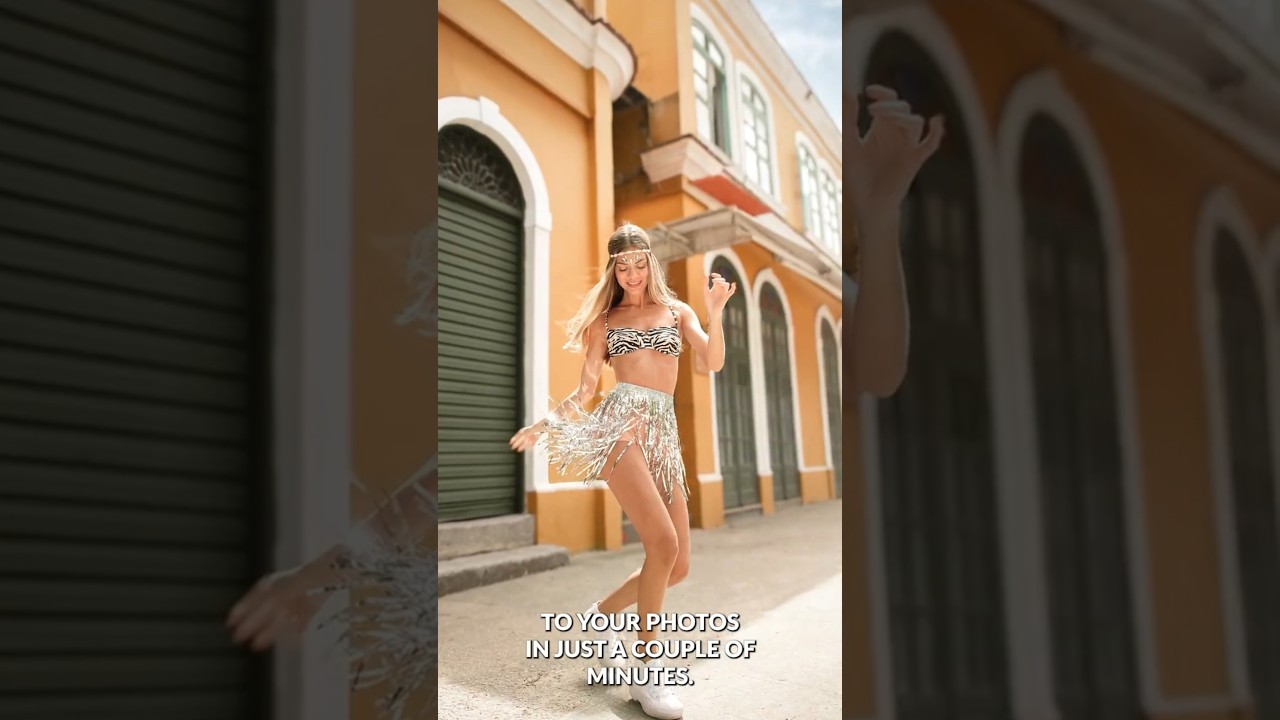
Last month I was finishing a batch of lifestyle portraits for an e-commerce client and hit a wall I’ve hit a hundred times before. Good light, strong subject, decent composition - but the background looked like a yard sale. A wayward tripod leg in the corner, a blown-out window that drew the eye straight off the subject, framing so tight the model’s shoulder was clipped. Fixable problems, every one of them. The question is always how fast.
That’s what pulled me into this one-minute tutorial from Aaron Nace over at PHLEARN. He runs through four separate cleanup techniques on a single portrait, and the sequencing alone is worth studying. It’s not just a list of tools - it’s a logic for how to approach a messy photo without wasting an afternoon on it.
Generative Fill for the Stuff That Doesn’t Belong There
The first thing Aaron tackles is background clutter, and he goes straight to Generative Fill. The workflow here is straightforward but the selection strategy matters. He uses the Lasso tool to draw a loose selection around the distracting element, leaving some breathing room around the edges rather than hugging the object tightly. That extra margin gives the AI context to work with - it needs to see what’s around the problem area to convincingly fill it.
Once the selection is active, you hit the Generative Fill button in the contextual taskbar and submit with an empty prompt. No text description. Photoshop reads the surrounding pixels and generates fill options based purely on context. Aaron generates a few variations using the arrows in the Properties panel and picks the cleanest result. The whole thing takes about 20 seconds per distraction.
One thing worth noting: Generative Fill creates its own layer automatically, which means the original pixels are untouched. That’s not just a safety net - it’s genuinely useful when a client changes their mind three days later.
Expanding a Tight Crop Without Destroying the Edges
The second problem is framing. The original shot is cropped close enough that the subject feels squeezed, which is a common reality when you’re shooting in a tight location or the photographer just didn’t have room to back up.
Aaron’s fix is to use the Crop tool to expand the canvas outward, then apply Generative Expand - which is essentially Generative Fill applied to the empty canvas area. He drags the crop handles beyond the existing image boundaries, which creates transparent zones around the edges. Then, same process as before: Generative Fill with an empty prompt, let Photoshop generate context-appropriate content to fill those zones.
What comes back is usually pretty clean on simple backgrounds - walls, sky, out-of-focus environments. The generated content won’t survive close inspection at 100%, but for web use and anything not being printed at billboard scale, it holds up. I’ve started using this regularly when clients send me images from photographers who shot too tight, and it saves the kind of back-and-forth that costs everyone time.
Sky Replacement as a One-Step Atmosphere Fix
If the background is a flat, blown-out sky, Aaron’s next tool is Edit > Sky Replacement. This one’s been in Photoshop for a few versions now and it still gets underused. The panel gives you a library of sky options sorted by type - blue skies, golden hour, stormy - and Photoshop automatically masks the sky, adjusts the edge, and shifts the foreground lighting to match the new sky’s color temperature.
The key setting to pay attention to is the Foreground Lighting slider. Pushed too far and the subject starts looking composited. Aaron keeps it subtle, enough to tie the new sky to the subject without making it feel like a postcard. The sky replacement lives on its own layer group, so you can tweak the mask or swap skies later without redoing any work.
Camera Raw for the Final Polish Pass
Once the structural cleanup is done, Aaron brings the image into Camera Raw via Filter > Camera Raw Filter. This is where the portrait actually starts to sing. He works through a targeted set of adjustments - the exact order matters less than covering these bases: overall exposure and contrast, a slight lift in the shadows to open up the face, some texture and clarity adjustments to separate the subject from the background visually, and a light HSL pass to make skin tones land where they should.
He also uses the Masking tools inside Camera Raw to apply adjustments selectively - specifically a People mask that targets the subject separately from the background. This is genuinely faster than building a selection in Photoshop proper, and the edge quality is solid for portrait work.
Where I’d Push This Workflow Further
This is a tight, honest workflow and I use most of it. The one place I’d add a step is between the Generative Fill phase and the Camera Raw phase. On commercial work, especially anything going to print, I always take a minute to zoom to 100% and check every generated edge. Generative Fill is impressive but it occasionally produces subtle repeating textures or soft halos along high-contrast edges that only show up under close inspection. A quick clone stamp pass on a new layer takes two minutes and prevents the kind of embarrassing artifact that a client’s art director will spot immediately.
It’s not a knock on the technique - it’s just the difference between a personal workflow and one you’re billing for.
The core lesson here is that modern Photoshop lets you solve structural image problems - bad backgrounds, tight framing, blown skies - in the same session where you’re doing color and retouching, without the cleanup work bleeding into your edit time. Treat these tools as prep, not afterthought.
Watch Aaron’s full one-minute breakdown to see exactly how these tools behave visually before you try to replicate the steps: How to Remove Distractions Fast in Photoshop on YouTube. The pacing alone is a masterclass in not overcomplicating what doesn’t need to be complicated.
Comments
Leave a Comment