I run post-production for ad agencies and e-commerce brands, which means I spend a lot of time inside Adobe’s ecosystem. I also spend a lot of time justifying that cost to clients who see a line item for “software subscriptions” and ask why it never goes away. For years, my answer was basically: there is no serious alternative. Then I watched this tutorial and had to update my answer.
Watch the full tutorial on YouTube
In this Tony and Chelsea Northrup tutorial, Tony walks through a complete editing session in Luminar using real photos he shot in New York City. Not sample images, not stock. Photos he actually cares about, with tricky technical problems like extreme contrast ranges, high-ISO shadow noise, and blown-out skies. That specificity is what makes it worth your time. He is not selling a fantasy workflow. He is showing you what he actually does, and explaining the decisions behind each move. Here is my breakdown of the key steps, with notes on where this approach translates to professional work.
Step 1: Start With the Crop, Not the Exposure
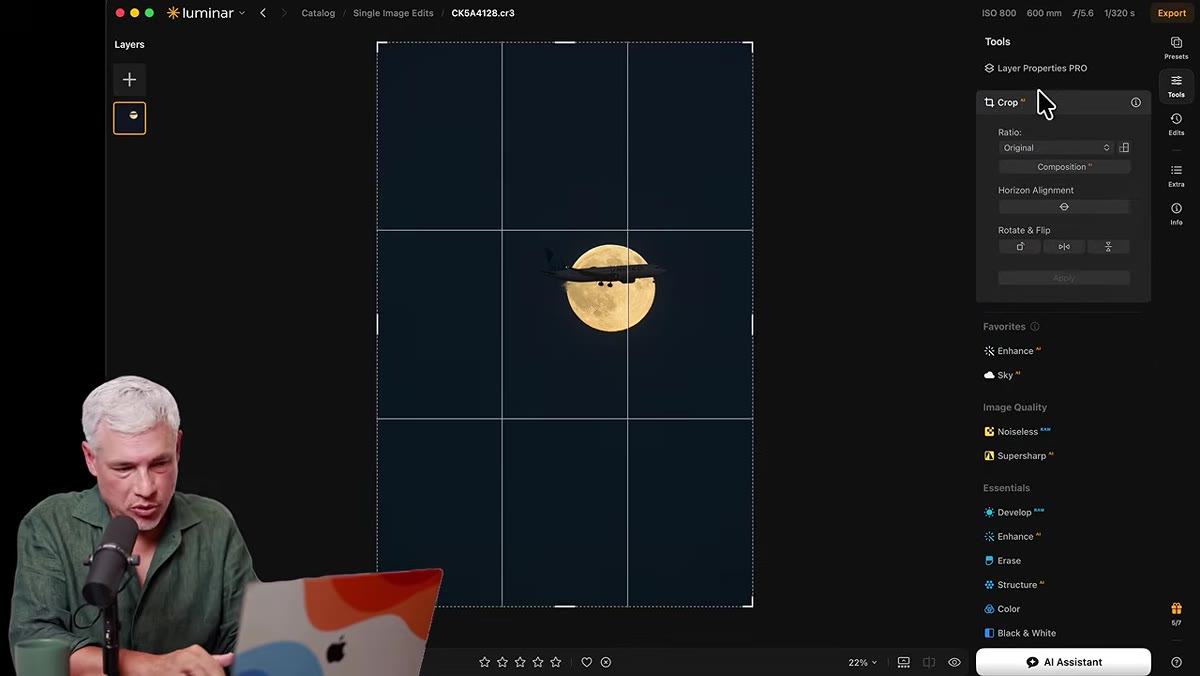 Luminar interface open with moon-and-plane photo loaded
Tony opens with cropping before touching any tonal controls, and I want to call that out because a lot of photographers do this backwards. Composition decisions made after exposure corrections are decisions made on data you have already manipulated. When you crop first, you know exactly what area needs to carry the tonal load. For this particular image, a jet crossing a rising full moon over the New York skyline, the framing decision changes how much of the dark foreground survives into the final file.
Luminar interface open with moon-and-plane photo loaded
Tony opens with cropping before touching any tonal controls, and I want to call that out because a lot of photographers do this backwards. Composition decisions made after exposure corrections are decisions made on data you have already manipulated. When you crop first, you know exactly what area needs to carry the tonal load. For this particular image, a jet crossing a rising full moon over the New York skyline, the framing decision changes how much of the dark foreground survives into the final file.
If you have been opening images and immediately reaching for the exposure slider, try flipping this habit for a week. You will make better tonal decisions when you know the final frame.
Step 2: Tame Extreme Contrast With Highlights and Shadows Separately
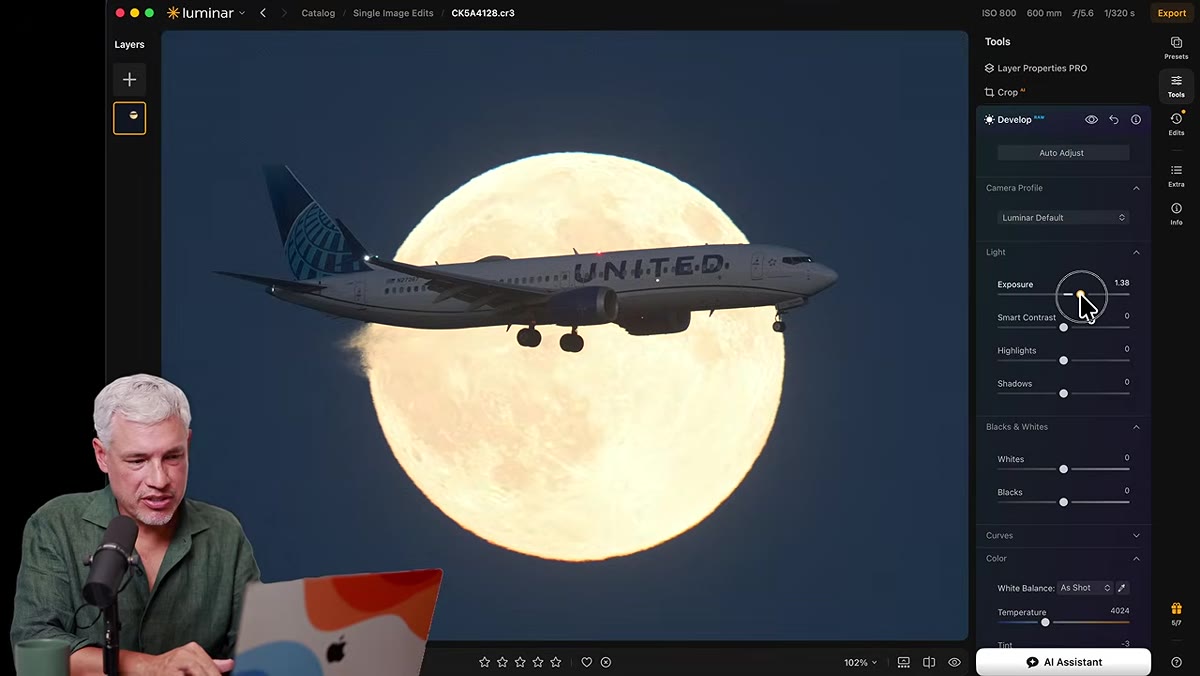 Exposure panel open, highlights being pulled down
The moon-and-plane shot has a dynamic range problem that would make most photographers flinch. The moon is reflecting direct sunlight. The plane and the city below it are lit by ambient atmospheric light at night. That is not a subtle contrast difference. Tony’s approach is to pull the highlights down hard to recover lunar detail, then bring the shadows up separately to pull the plane out of the darkness.
Exposure panel open, highlights being pulled down
The moon-and-plane shot has a dynamic range problem that would make most photographers flinch. The moon is reflecting direct sunlight. The plane and the city below it are lit by ambient atmospheric light at night. That is not a subtle contrast difference. Tony’s approach is to pull the highlights down hard to recover lunar detail, then bring the shadows up separately to pull the plane out of the darkness.
The side effect he addresses honestly: lifting shadows introduces noise and a soft, slightly muddy look in the darker tones. His counter-move is to reduce the blacks slightly after lifting shadows, which adds micro-contrast back into the low end without fighting against the shadow recovery. It is a small adjustment, but it is the kind of thing that separates a flat edit from one that still feels punchy.
Step 3: Use the AI Enhancement Tool as a Starting Point, Not a Finish Line
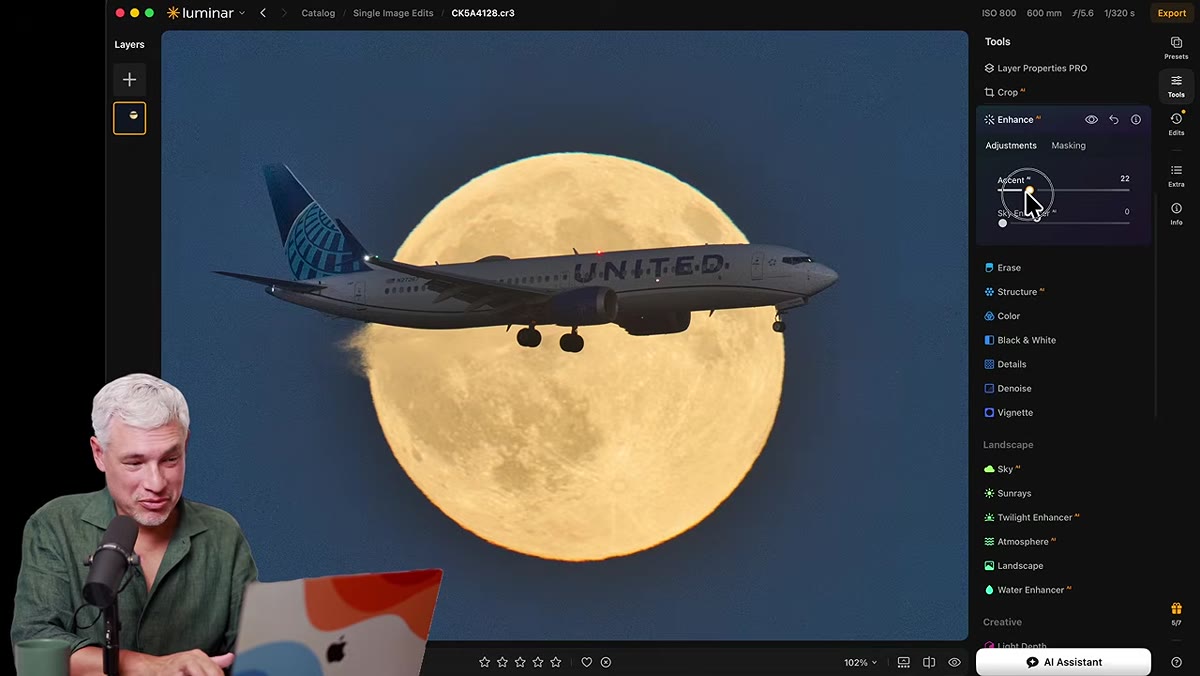 AI Enhancement slider being dragged to the right
Luminar’s AI Enhancement tool is a single slider that analyzes the image and applies a combination of tonal and color adjustments automatically. Tony uses it and is transparent about what it does: it makes things look better in a general sense. Think of it as a smarter version of Lightroom’s Auto button. For a working photographer editing a large personal project or moving quickly through a client delivery, it is a genuinely useful first pass.
AI Enhancement slider being dragged to the right
Luminar’s AI Enhancement tool is a single slider that analyzes the image and applies a combination of tonal and color adjustments automatically. Tony uses it and is transparent about what it does: it makes things look better in a general sense. Think of it as a smarter version of Lightroom’s Auto button. For a working photographer editing a large personal project or moving quickly through a client delivery, it is a genuinely useful first pass.
My caveat here, which I will expand on later, is that “better in a general sense” is not always the same as “correct for this client’s brand.” But as a tool for getting an image to a workable state quickly, it earns its place in the panel.
Step 4: Apply AI Noise Reduction Before Sharpening, Not After
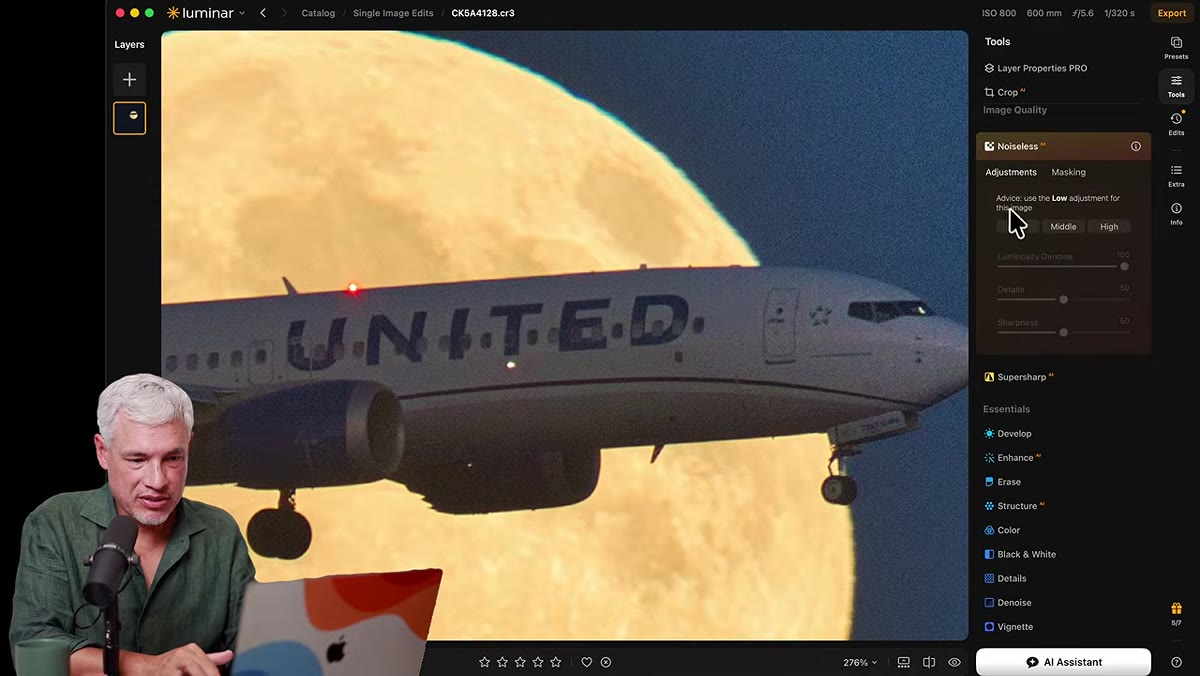 Noise reduction panel active, before/after comparison visible
Tony shoots the moon image at ISO 800, which is not high by modern standards, but the shadow recovery from Step 2 amplifies whatever noise was already there. He addresses this with Luminar’s noise reduction tool before moving to sharpening, which is the correct order and something worth reinforcing.
Noise reduction panel active, before/after comparison visible
Tony shoots the moon image at ISO 800, which is not high by modern standards, but the shadow recovery from Step 2 amplifies whatever noise was already there. He addresses this with Luminar’s noise reduction tool before moving to sharpening, which is the correct order and something worth reinforcing.
Sharpening and noise reduction work in opposite directions at the pixel level. If you sharpen first, you are locking in the noise pattern before the noise reduction has a chance to analyze it. Noise reduction first, then sharpening, gives you a cleaner base for the sharpening algorithm to work with. He runs a medium noise reduction pass and notes that detail on the aircraft tail numbers is still legible. That is a meaningful real-world test, not just a before-and-after slider screenshot.
Step 5: Use AI Sharpening to Recover Atmospheric Haze
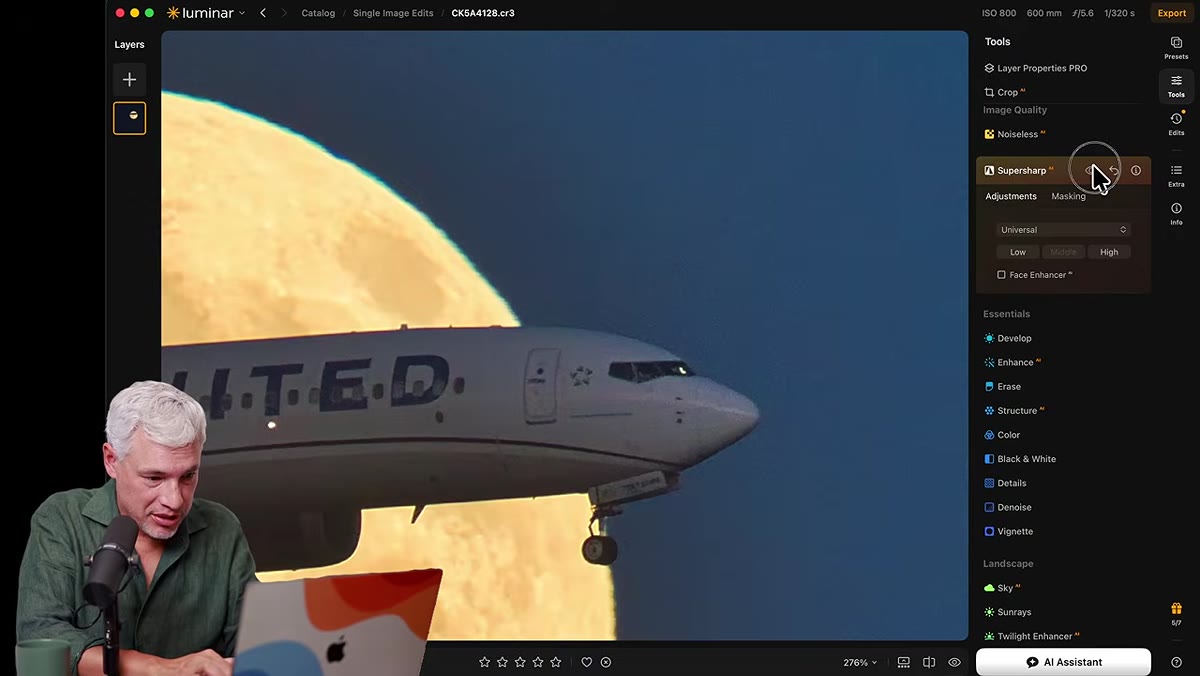 Sharpening applied, moon detail comparison toggled on/off
The moon in this shot is partially softened by atmospheric haze, which is a real optical problem when shooting at long focal lengths through miles of air over a city. Tony applies Luminar’s AI sharpening tool at a moderate level and toggles it on and off to evaluate the result. The sharpening is not just adding edge contrast. It is recovering mid-tone clarity in the lunar surface that the haze had diffused.
Sharpening applied, moon detail comparison toggled on/off
The moon in this shot is partially softened by atmospheric haze, which is a real optical problem when shooting at long focal lengths through miles of air over a city. Tony applies Luminar’s AI sharpening tool at a moderate level and toggles it on and off to evaluate the result. The sharpening is not just adding edge contrast. It is recovering mid-tone clarity in the lunar surface that the haze had diffused.
Toggling tools on and off during the edit, rather than only doing a final before-and-after, is a habit I would encourage everyone to build. It keeps you honest. It is easy to over-apply any tool when you are only comparing against the raw file at the end.
Step 6: Rescue Blown Skies With Sky AI
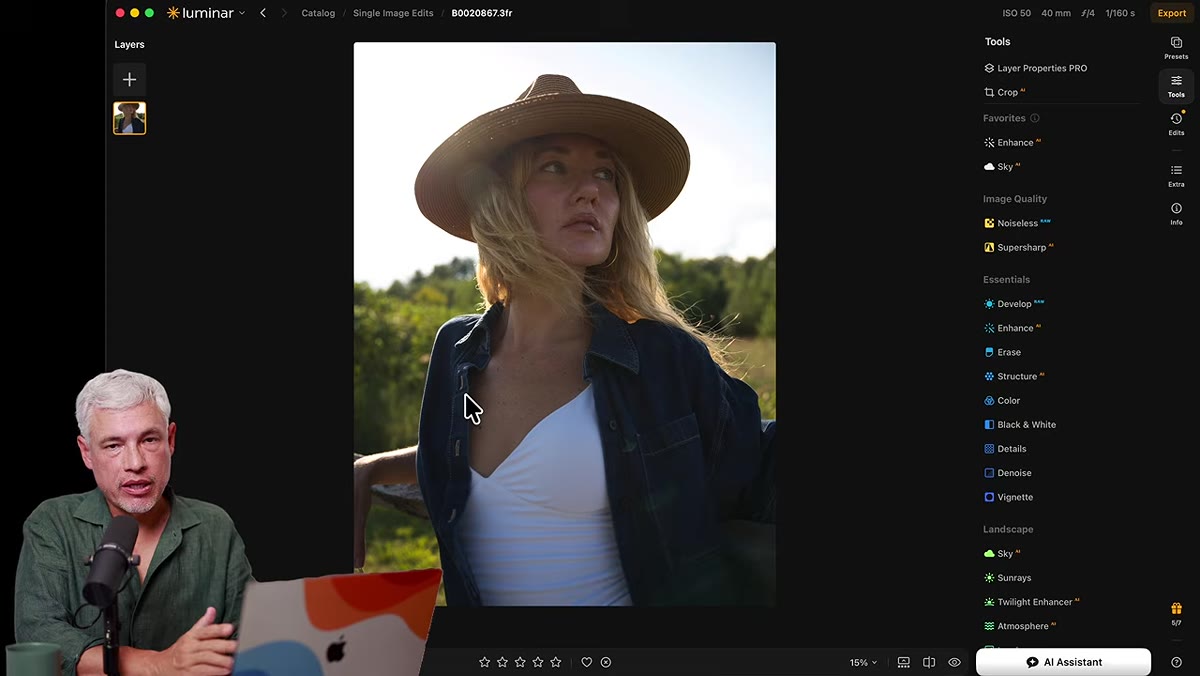 Sky AI applied to portrait with overexposed background
Tony shifts to a second image, a portrait shot into a bright sky where the background is completely overexposed. Sky AI detects and masks the sky automatically, then allows you to replace or rebalance it. For photographers coming from Photoshop, this is roughly equivalent to a luminosity mask combined with a sky replacement layer, except it takes about fifteen seconds instead of fifteen minutes.
Sky AI applied to portrait with overexposed background
Tony shifts to a second image, a portrait shot into a bright sky where the background is completely overexposed. Sky AI detects and masks the sky automatically, then allows you to replace or rebalance it. For photographers coming from Photoshop, this is roughly equivalent to a luminosity mask combined with a sky replacement layer, except it takes about fifteen seconds instead of fifteen minutes.
The honest version of this: Sky AI works extremely well on clean horizon lines and open skies. It gets more complicated with complex foliage edges or architectural geometry. But for the portrait use case Tony demonstrates, it is a legitimate time saver with professional-quality results.
My Take: Where This Fits in a Professional Toolkit
I track the hours my automation systems save me. Over the past several years, between Photoshop actions, batch processors, and scripts I have built for repetitive client work, I am well past 2,400 hours saved. I say that not to brag but to explain why I evaluate editing tools through a time-and-money lens first.
Luminar’s one-time purchase model is a real advantage for photographers who have a stable, known workflow and do not need Lightroom’s catalog management at scale. For solo shooters, educators, or photographers who do personal and editorial work alongside client projects, the subscription math changes significantly. The AI tools Tony demonstrates are not gimmicks. They are solid implementations of processes that would otherwise require manual masking, frequency separation, or plugin stacks. The tradeoff is that you are working in a system that does not integrate as deeply with third-party tools as Adobe’s ecosystem does.
If you are paying for Lightroom and using 30 percent of its features, this tutorial is worth watching before your next renewal date.
The single most important thing Tony demonstrates is not any individual tool. It is the discipline of addressing problems in the right order: crop, then contrast, then color, then detail. That sequence is the same whether you are in Luminar, Lightroom, or Photoshop. The tools change. The logic does not.
Watch the full tutorial on YouTube and see Tony’s complete NYC workflow, including the Luminar vs. Lightroom comparison and how to bring your existing Lightroom catalog into Luminar if you decide to make the switch.
Comments
Leave a Comment