Building Custom Presets That Actually Stick: A Practical Guide

Building Custom Presets That Actually Stick: A Practical Guide

Building Custom Presets That Actually Stick: A Practical Guide I’ve watched a lot of photographers and designers download preset packs, use them twice, then abandon them. The problem isn’t usually the presets themselves—it’s that they weren’t built for their specific workflow. That’s why I’m obsessed with custom presets. When you create presets tailored to your actual work, something magical happens. You stop thinking about settings and start thinking about results. Your consistency improves.
Building Custom Presets in Photoshop: Why One-Size-Fits-All Isn't Enough

Building Custom Presets in Photoshop: Why One-Size-Fits-All Isn't Enough

Building Custom Presets in Photoshop: Why One-Size-Fits-All Isn’t Enough I spent two years using other people’s presets before I realized I was wasting time. Sure, they looked nice in the demo videos, but they never quite fit my editing style or the specific cameras I was working with. The turning point came when I started building my own custom presets, and honestly, it’s transformed how fast I can work. Here’s what I’ve learned: custom presets aren’t just for the advanced users.

Building Custom Photoshop Presets That Actually Save You Time

Building Custom Photoshop Presets That Actually Save You Time

Building Custom Photoshop Presets That Actually Save You Time I’ve watched a lot of creators accumulate hundreds of presets they never use. Their Curves panel becomes a graveyard of “maybe someday” adjustments. Here’s the thing: custom presets only work when they solve actual problems in your real workflow. Let me show you how I build presets that stick around and actually get used. Know What Problem You’re Solving Before you save anything, ask yourself: “Am I doing this adjustment sequence more than twice a month?

Building Cinematic Worlds: A Matte Painting Workflow That Actually Works

Building Cinematic Worlds: A Matte Painting Workflow That Actually Works

I’ve been diving into matte painting techniques lately, and I’ve noticed something frustrating: most tutorials skip over the structural stuff. They show you the final result, but not the why behind the layering decisions and compositional choices that make a cinematic environment actually feel believable. That’s why I got genuinely excited learning about how professional concept artists like Killian Prevost approach this discipline from the ground up. It’s not just about beautiful renders—it’s about building a repeatable, organized workflow that scales whether you’re creating a game environment, film concept, or personal illustration.

The Best Photoshop Plugins for Photographers in 2026

The Best Photoshop Plugins for Photographers in 2026

The Photoshop plugin market is crowded with options that promise to revolutionize your workflow. Most of them don’t. After testing dozens of plugins over the past year, here are the ones that genuinely earn their place in a photographer’s toolkit. AI-Powered Masking and Selection Topaz Photo AI Topaz has consolidated their suite into a single application that handles noise reduction, sharpening, and upscaling. The AI-driven noise reduction is genuinely better than Camera Raw’s built-in version, particularly at very high ISOs (12800+).

Best Free Photoshop Plugins 2026: Proven Tools to Supercharge Your Workflow

Best Free Photoshop Plugins 2026: Proven Tools to Supercharge Your Workflow

Best Free Photoshop Plugins 2026: Proven Tools to Supercharge Your Workflow I’ve been testing Photoshop plugins professionally for over a decade, and I can tell you with absolute certainty: the gap between paid and free plugins has narrowed significantly. Some of the best free Photoshop plugins 2026 offers rival premium solutions that cost hundreds of dollars. But here’s the catch—not all free plugins are created equal. Many are abandoned projects or poorly maintained tools that’ll slow your system to a crawl.

The Best Free Photoshop Brushes for Photographers in 2026

The Best Free Photoshop Brushes for Photographers in 2026

There are thousands of free Photoshop brush sets floating around the internet, and most of them are junk. Poorly made, oddly specific, or so low-resolution they fall apart at any reasonable canvas size. I’ve spent years collecting brushes that actually hold up in professional work. Here are the free sets that earned a permanent spot in my library. Retouching Brushes Kyle T. Webster’s Megapack (Included with CC) If you have an Adobe Creative Cloud subscription, you already have access to Kyle Webster’s massive brush library.

Best External SSDs for Photoshop Scratch Disks in 2026

Best External SSDs for Photoshop Scratch Disks in 2026

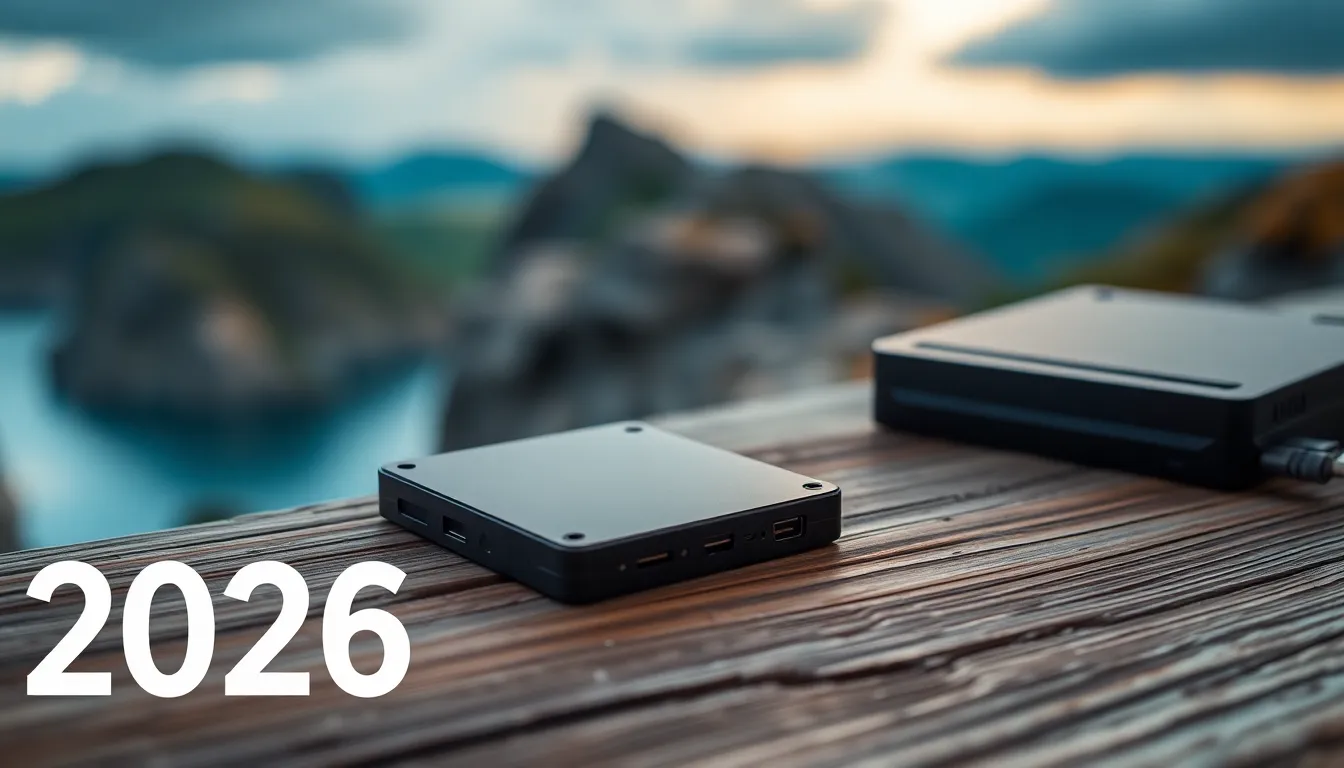
Best External SSDs for Photoshop Scratch Disks in 2026 If you’ve ever watched Photoshop crawl to a halt while processing a massive composite or applying filters to a 500MB PSD file, you know the pain. Your internal drive is choking. Your RAM is maxed out. And suddenly you’re watching the spinning wheel of death instead of actually creating. That’s where a dedicated scratch disk comes in—and not just any external drive will do.

Batch Automation in Photoshop: Processing Hundreds of Images Without Lifting a Finger

Batch Automation in Photoshop: Processing Hundreds of Images Without Lifting a Finger

Batch Automation in Photoshop: Processing Hundreds of Images Without Lifting a Finger I used to spend entire afternoons clicking through the same adjustments on dozens of product photos. Crop, adjust levels, add a watermark, export. Repeat 47 times. My mouse hand would cramp, my eyes would glaze over, and I’d inevitably mess up one file in the middle of the sequence. Then I actually learned how to use Photoshop’s batch automation features.

Batch Automation in Photoshop: Process 100 Images While You Sleep

Batch Automation in Photoshop: Process 100 Images While You Sleep

Batch Automation in Photoshop: Process 100 Images While You Sleep I’ve spent countless hours watching Photoshop do the same thing over and over. Resize, color correct, add a watermark, export. Resize, color correct, add a watermark, export. About six months ago, I decided this was insane and dived deep into batch automation. What I discovered completely changed how I approach production work. If you’re still manually applying the same edits to dozens or hundreds of images, you’re wasting time you could spend on actual creative decisions.

Batch Automation in Photoshop: Process 100 Images While You Grab Coffee

Batch Automation in Photoshop: Process 100 Images While You Grab Coffee

I’ll be honest—the first time I set up proper batch automation in Photoshop, I felt like I’d unlocked a cheat code. What used to take me four hours of repetitive clicking now happens while I’m literally away from my desk. If you’re still processing images one-by-one, you’re leaving serious productivity gains on the table. Why Batch Processing Actually Matters Before I dive into the how, let me explain why this matters beyond just “saving time.

Automating Your Photoshop Workflow: Scripts vs Actions vs Droplets

Automating Your Photoshop Workflow: Scripts vs Actions vs Droplets

I’ve spent the last five years testing every automation method Photoshop offers, and I’m genuinely excited to share what actually works versus what sounds good in theory. Why Automation Matters (And Why Most People Skip It) Here’s the honest truth: setting up automation takes time upfront. You’ll spend an hour creating a script that saves you five minutes per day. The math only works if you’re processing images regularly. But if you are?