The Best Texture Overlays for Adding Depth

The Best Texture Overlays for Adding Depth

Texture overlays are one of the fastest ways to add visual interest to a photograph. A concrete wall, a sheet of old paper, a scratched metal surface — layered over your image with the right blend mode, these textures can transform a flat photo into something with real tactile depth. What Makes a Good Texture The best textures for photographic work share a few qualities. They’re high resolution — at least matching your camera’s output.


Streamlining Your Creative Workflow: Lessons from Game Development's Biggest Releases

Streamlining Your Creative Workflow: Lessons from Game Development's Biggest Releases

Why Game Development Teaches Us About Workflow Efficiency I’ve been thinking a lot lately about how professional creative teams handle massive projects under tight deadlines. When I heard that a major roguelite action RPG is expanding to multiple platforms simultaneously this April, it got me wondering: what can photographers and digital artists learn from how game studios orchestrate these complex launches? The answer is more relevant than you’d think. Whether you’re shipping a game across five different platforms or processing hundreds of client photos, the underlying principle is identical—systematic workflow optimization saves time and prevents errors.

Building a Skin Smoothing Action That Looks Natural

Building a Skin Smoothing Action That Looks Natural

Most skin smoothing actions produce results that look obviously retouched — waxy, pore-free skin that belongs in a video game, not a photograph. Building a natural-looking skin smoothing action requires understanding what makes skin look like skin, and carefully preserving those qualities while reducing what you don’t want. What Natural Skin Looks Like Real skin has texture at multiple scales. There are large-scale features (bone structure, muscle contour), medium-scale features (pores, fine lines), and small-scale features (micro-texture that gives skin its matte quality).

How to Share and Distribute Your Photoshop Actions

How to Share and Distribute Your Photoshop Actions

You’ve built a collection of useful Photoshop actions. Now you want to share them — with your team, your clients, or the world. The process seems simple (export and send), but doing it properly requires attention to compatibility, documentation, and user experience. Exporting Actions Correctly In the Actions panel, select the action set (the folder) you want to export — not an individual action. Go to the Actions panel menu and choose “Save Actions.

Samsung T9 vs SanDisk Extreme Pro vs Crucial X9 Pro — Best SSD for Photoshop Users

Samsung T9 vs SanDisk Extreme Pro vs Crucial X9 Pro — Best SSD for Photoshop Users

Samsung T9 vs SanDisk Extreme Pro vs Crucial X9 Pro — Best SSD for Photoshop Users I’ve been shooting, editing, and testing gear for years, and I can tell you that your storage solution matters way more than most photographers realize. A sluggish drive doesn’t just slow you down—it kills your creative momentum. You’re waiting for scratch disks to allocate, watching progress bars instead of tweaking curves, and honestly? That friction adds up.

Restoring Blurry Vintage Photos with Photoshop's Generative Upscale (One-Click Method)

Restoring Blurry Vintage Photos with Photoshop's Generative Upscale (One-Click Method)

I’ve spent the last few years watching AI integration transform Photoshop from a static tool into something genuinely intelligent. And honestly? The new Generative Upscale feature might be one of the most practical implementations I’ve seen yet. In this excellent tutorial, Aaron Nace (PHLEARN) walks through exactly how to take a blurry vintage photo and restore it to crisp, magazine-quality clarity in literally one click. Let me break down what you’re about to learn and why it matters for anyone sitting on a collection of old family photos or soft-focus film scans.

Remove Distractions in Photoshop in Minutes: Aaron Nace's Game-Changing Generative Fill Workflow

Remove Distractions in Photoshop in Minutes: Aaron Nace's Game-Changing Generative Fill Workflow

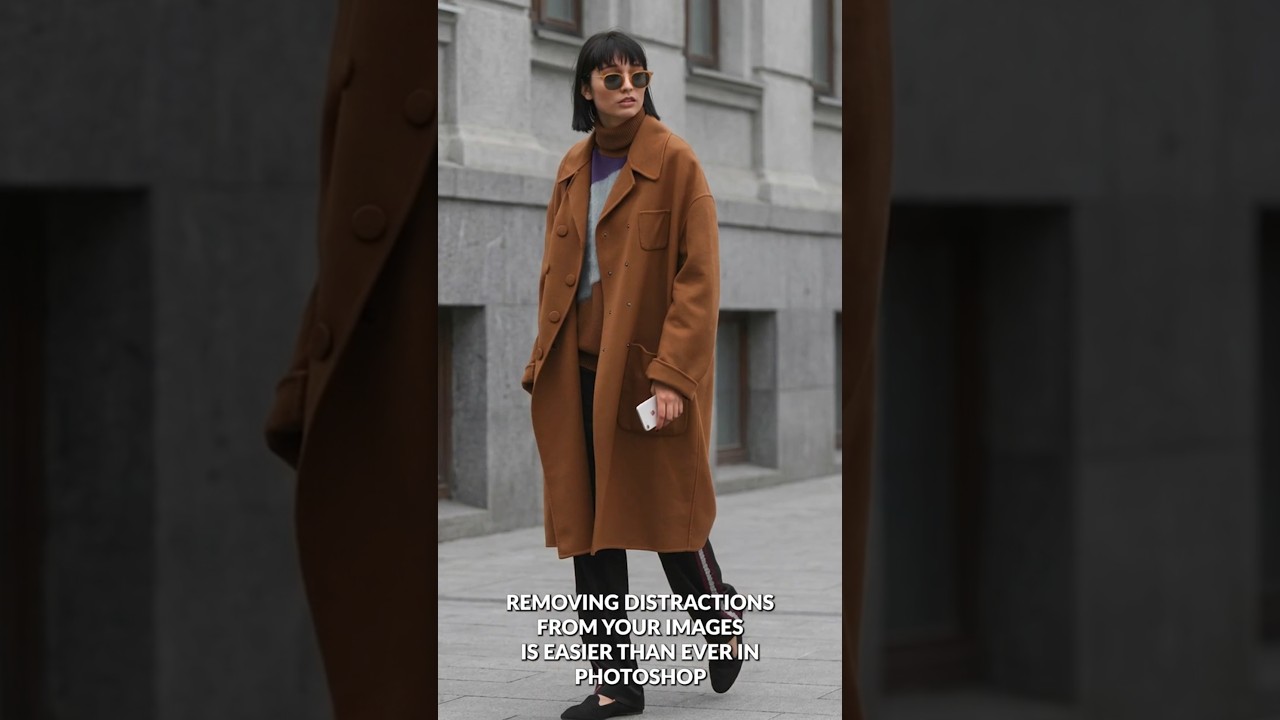
The Game-Changer for Photo Cleanup I’ve spent years testing different Photoshop retouching workflows, and I can tell you without hesitation: the method Aaron Nace demonstrates in this tutorial is genuinely one of the fastest ways to remove distractions from your images. What used to take 15-20 minutes of careful cloning and healing now takes just a couple of clicks. In this excellent tutorial, Aaron Nace (PHLEARN) reveals exactly how to leverage Photoshop’s Generative Fill with the Selection Brush tool to eliminate unwanted elements in seconds.

How to Record Complex Multi-Step Actions

How to Record Complex Multi-Step Actions

Recording a simple Photoshop action is straightforward — hit record, do your steps, hit stop. But complex multi-step actions that work reliably across different images require planning and a few techniques most people skip. Plan Before You Record The biggest mistake is hitting the record button and figuring it out as you go. Complex actions need a written plan. Open a text file and list every step in order. Note which steps need user input (like selecting an area) and which should run automatically.

PiXimperfect Built an AI That Retouches the Impossible — Here's What It Means

PiXimperfect Built an AI That Retouches the Impossible — Here's What It Means

I’ve been following Unmesh Dinda’s work on PiXimperfect for years now, and the man has a talent for making Photoshop do things it probably wasn’t designed to do. But this latest project is different. He’s gone beyond Photoshop tutorials and built an actual AI-powered retouching tool that tackles the kinds of edits that make even experienced retouchers groan. The video is a full walkthrough of the tool in action, and after watching it twice, I want to break down what’s happening here — both the technical achievement and the broader implications for anyone who retouches professionally.

Photoshop Scripts vs Actions: Which Should You Use

Photoshop Scripts vs Actions: Which Should You Use

Actions and scripts are both automation tools in Photoshop, and they overlap enough in capability to cause confusion. But they serve different purposes, and choosing the right one for a task matters. Actions: Record and Replay Actions record a linear sequence of steps and replay them exactly. You don’t write code — you perform the steps manually while Photoshop records, then it plays them back. Strengths: Zero programming required Easy to create, modify, and share Visual editing in the Actions panel Can include dialog stops for user input Support conditional actions (Insert Conditional from the panel menu) Limitations:

Photoshop Actions: The Workflow Game-Changer I Wish I'd Discovered Earlier

Photoshop Actions: The Workflow Game-Changer I Wish I'd Discovered Earlier

Photoshop Actions: The Workflow Game-Changer I Wish I’d Discovered Earlier I spent three years doing the same thing every single day: open an image, resize it to 1200x800, add a subtle vignette, boost saturation by 12%, and export as JPEG. Three years of mindless clicking. Then I discovered Photoshop actions, and honestly, I felt a bit foolish for not exploring them sooner. If you’re not using actions yet, you’re leaving serious productivity on the table.

Photoshop Actions: The Game-Changer Your Workflow Needs (If You Use Them Right)

Photoshop Actions: The Game-Changer Your Workflow Needs (If You Use Them Right)

Photoshop Actions: The Game-Changer Your Workflow Needs (If You Use Them Right) I used to spend roughly 12 hours a week on repetitive Photoshop tasks. Resizing batches of product photos. Applying the same color correction to 50 real estate listings. Adding watermarks to portfolio images. Then I actually sat down and built a proper action library, and I genuinely can’t overstate the impact—those 12 hours became maybe 2. The catch? Most people don’t use Photoshop actions effectively.