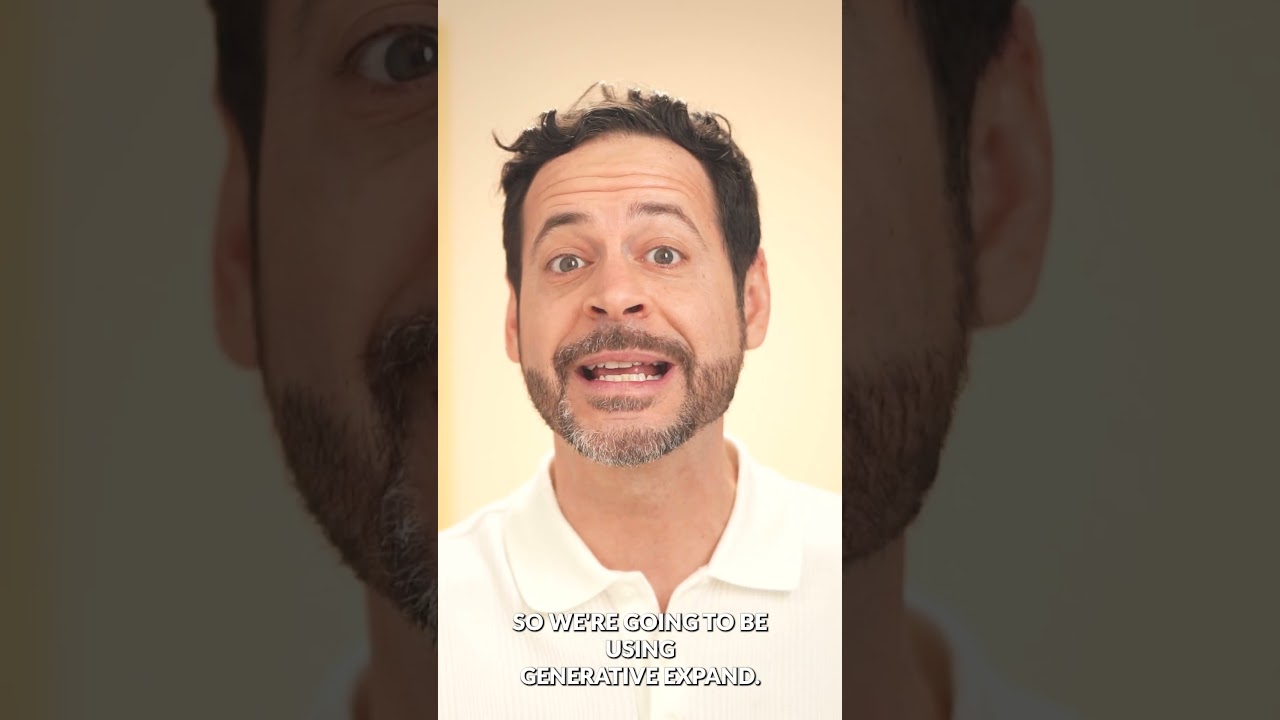
I’ve always found the double exposure effect to be one of those techniques that looks incredibly complex but is surprisingly straightforward once you understand the core principle. In this excellent tutorial, Aaron Nace (PHLEARN) demonstrates exactly how to nail this effect in just two minutes—and today, I’m breaking down every step so you can master it yourself.
What Makes a Double Exposure Work?
Before jumping into the technical steps, let’s talk about why this effect works at all. A double exposure combines two images—typically a silhouette and a landscape—to create a dreamy, artistic composite. The magic happens when you understand contrast. The silhouette needs to be dark against a light background, and your landscape image needs strong contrast between its own light and dark areas. This contrast is what allows the blending mode to work its magic.
I’ve experimented with plenty of image combinations, and I can tell you: weak contrast leads to muddy, indistinguishable results. Strong contrast creates that punchy, professional look that stops people mid-scroll. So start by auditing your source images before you even open Photoshop.
Step 1: Prepare Your Base Image
Your foundation is critical. You want a silhouette as your primary layer—think a profile shot of a person, an animal, or an architectural element against a bright sky or light background. This high contrast between subject and background is what allows the double exposure effect to shine through later.
Open this image in Photoshop first. This becomes your canvas, your reference point. Everything else will layer on top of it.
Step 2: Import Your Second Image as a Smart Object
Here’s where the workflow becomes efficient: instead of copying and pasting your landscape image, simply drag and drop it directly into your Photoshop document from your file explorer or finder. When you do this, Photoshop automatically places it as a smart object.
Why does this matter? Smart objects preserve the original image data and allow non-destructive editing. You can scale, rotate, and manipulate them without degrading quality. This is crucial for double exposures because you’ll need flexibility in positioning.
Step 3: Change the Blending Mode to Screen
Now for the game-changer: navigate to your Layers panel and find the blending mode dropdown (it typically defaults to “Normal”). Click it and select Screen.
The Screen blending mode is specifically designed for this effect. It makes the dark areas of your landscape image transparent while preserving the light and mid-tone details. This creates that ethereal, glowing quality that double exposures are known for. The lighter your landscape’s bright areas, the more visible they’ll appear within your silhouette.
I’ve tested this with dozens of different blending modes, and Screen remains the gold standard for double exposures. Lighten and Addition can work in certain situations, but Screen consistently delivers the most natural, balanced results.
Step 4: Position and Scale Your Landscape
Your landscape image won’t automatically be the right size or position. Use the Free Transform tool (Ctrl+T on Windows, Cmd+T on Mac) to scale and rotate your landscape layer until it complements your silhouette.
This is where creativity enters the process. You might want the landscape to fill the entire silhouette, or you might prefer it to peek out strategically—perhaps the tree extending from the person’s head, or mountains defining their shoulders. The positioning dramatically affects the final mood of the image.
Step 5: The Smart Object Advantage—Generative Expand
Here’s where Aaron’s tutorial introduces something clever. If you’ve positioned your landscape but parts of it extend beyond your silhouette boundary, you need to expand the canvas of that smart object without losing quality.
Double-click your smart object layer to open it in a new document. Select your Crop tool, then navigate to the fill options at the top of the screen and choose Generative Expand. Adjust your canvas borders and click “Generate.” Photoshop’s AI will intelligently extend the image. You’ll get three variations to choose from—pick the one that looks most natural.
Note: Generative Expand uses Adobe’s AI credits, so keep that in mind if you’re on a limited plan.
Step 6: Finalize and Merge
Once you’ve expanded your landscape and you’re happy with how everything looks, merge your layers back together and save your work. Your double exposure is complete.
Pro Tips From My Own Experimentation
Color grading matters. A double exposure will look even more cohesive if both images share a similar color temperature or saturation level. I often apply a subtle adjustment layer to harmonize the tones before blending.
Opacity is your friend. Don’t be afraid to reduce the opacity of your landscape layer to 70-90% if the effect feels too intense. Sometimes subtlety is more striking than a fully saturated double exposure.
Experiment with multiple landscapes. You can stack several landscape layers, each set to Screen mode, to create more complex compositions. Just be careful—too many layers can make things look chaotic rather than artistic.
Watch the Full Tutorial
This breakdown covers the essentials, but Aaron’s full tutorial includes additional examples and nuances that will deepen your understanding. Watch the complete tutorial on PHLEARN to see the technique applied to different image combinations and get a feel for what works best.
If you’re serious about leveling up your Photoshop skills across the board, PHLEARN PRO offers 200+ courses, 800+ presets and actions, and personalized support—all at 20% off with code PRO26. I’ve used their resources extensively, and the quality is consistently professional-grade.
The double exposure effect is just one tool in a larger toolkit, but it’s one that clients and audiences consistently respond to. Master this technique, and you’ll have a reliable, impressive effect to add to your creative repertoire.
Comments
Leave a Comment