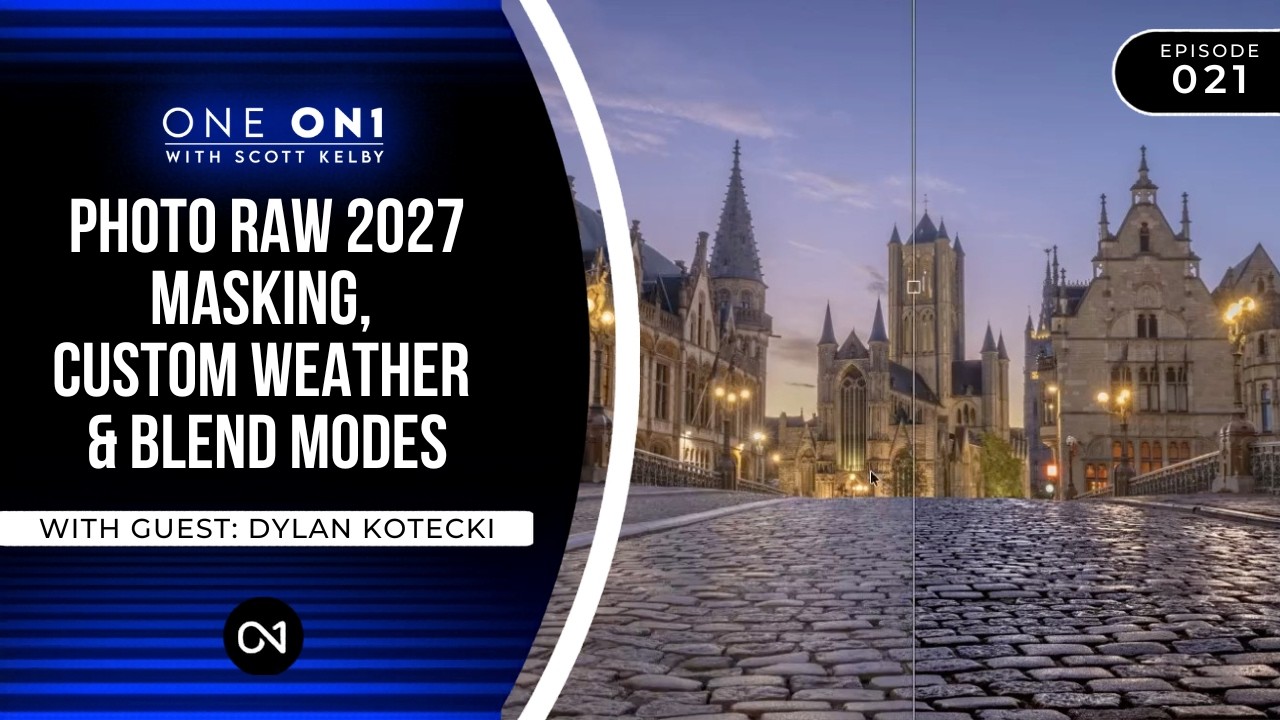
Last month I was retouching a series of architectural shots for a hospitality client. Beautiful cobblestone courtyard, golden-hour light, the whole thing. Problem was, the stones looked completely flat and dusty on camera. The client’s reference images all had that slick, rain-kissed texture that makes stone surfaces look rich and dimensional. I ended up doing a passable job with a luminosity mask and some manual dodging, but it took longer than it should have, and I knew there was a cleaner path.
Then I watched Scott Kelby’s latest episode of One ON1.
Watch the full tutorial on YouTube
In this KelbyOne tutorial, Scott walks through a genuinely clever technique for making dry cobblestones look wet using ON1 Effects, AI masking, and the Tone Enhancer filter. Dylan Kotecki from ON1 joins him to preview masking changes coming in Photo RAW 2027, demonstrate custom weather overlays using blend modes and depth masks, and show how to tame the occasionally overzealous NoNoise AI 2027. Scott rounds everything out with a practical breakdown of blend modes, including one specific alignment trick I’ve already added to my own workflow.
The Wet Cobblestone Effect Is Simpler Than You’d Expect
The core of Scott’s wet stone technique lives inside ON1 Effects, and it starts with the Tone Enhancer filter. The goal is to deepen the midtones and pull out the specular quality that wet surfaces have without blowing the highlights or muddying the shadows.
What makes it work is the AI masking step. Rather than painting a mask by hand or using a color range selector, Scott lets ON1’s AI generate a subject mask and then inverts it to isolate the ground plane. That inversion is the key move. You’re not masking what you want to protect, you’re masking what you want to affect, which in this case is the cobblestones themselves.
Once the mask is in place, the Tone Enhancer does the heavy lifting. Scott adjusts the tone curve to push contrast into the shadow zones of the stones, which is where wet surfaces differ most from dry ones. Wet stone reflects light unevenly, and that subtle mid-shadow contrast is what sells the illusion. After dialing in the look, he saves the entire thing as a reusable preset, which means the next time he has a flat stone surface, it’s a one-click fix with a mask refinement rather than a rebuild from scratch.
That last step is the one I keep coming back to. Saving effects as presets in ON1 is not new information, but the discipline of doing it immediately after you solve a problem is something I preach to my own clients and don’t always practice myself.
Photo RAW 2027’s Masking Redesign Changes the Order of Operations
Dylan Kotecki’s section on the 2027 masking workflow is worth watching even if you’re not an ON1 user, because the underlying logic applies to any layer-based editing environment. The redesign moves mask creation earlier in the process, before you’ve committed to filter settings, which means you’re building your edit with the mask in mind rather than retrofitting it afterward.
The practical upside is fewer mask-and-readjust cycles. In the current version, it’s easy to get your settings exactly right on a global level and then realize your mask needs so much refinement that the settings no longer hold. The 2027 approach front-loads the selection work so your adjustments are always operating on the right pixels from the start.
Custom Fog and the Depth Mask Trick
The weather overlay section is where Dylan earns his screen time. Using ON1’s Textures panel, he brings in a fog overlay and then uses a depth mask to control where the fog sits in the frame. Depth masking lets the software infer spatial distance from the image data and apply effects selectively based on how far back in the scene a region appears.
In practice, this means fog that actually behaves like fog. It thickens in the background, fades near the foreground, and interacts with the image’s natural atmospheric perspective rather than sitting on top of the scene like a flat filter. The blend mode doing most of the work here is Screen, which drops the dark pixels in the overlay and lets only the lighter fog tones interact with the image beneath.
If you’re doing this in Photoshop with a texture layer, the same logic applies. Set the blend mode to Screen, drop the opacity until it reads as atmosphere rather than effect, and use a gradient or depth-aware mask to keep the foreground clean. I’ve used this approach with haze overlays on automotive work, and the depth mask equivalent in Photoshop is usually a hand-painted luminosity mask based on a distance gradient.
The Blend Mode Shortlist and a Precise Alignment Trick
Scott’s blend mode breakdown near the end of the video is the kind of thing I wish existed when I was starting out. He doesn’t try to explain all 27 blend modes. He identifies the handful that actually come up in photographic work: Screen for brightening and overlay effects, Multiply for darkening and shadow depth, Overlay and Soft Light for contrast and texture blending, and Luminosity for color-safe sharpening.
The alignment trick he demonstrates uses the Difference blend mode. Set a layer to Difference while you’re positioning it over another image, and the areas where both layers match perfectly will render as black. You’re essentially using the blend mode as a visual null indicator. When you see black, you’re aligned. It’s precise in a way that eyeballing never is, and I’ve already used it once this week to register two product shots taken from slightly different angles.
Presets Are Only as Good as Your Habit of Saving Them
The connective thread across this entire tutorial is automation through preparation. Scott builds a wet stone effect and immediately saves it. Dylan redesigns a masking workflow so the setup work happens before the creative work. The blend mode section ends with a technique that removes a guessing step entirely.
I track hours saved by the systems I build, and the number is high enough that my kids think I’m making it up. What Scott’s tutorial reinforces is that the savings compound only when you capture the technique at the moment you figure it out, not later when you think you’ll remember it.
Watch the full tutorial on YouTube for the visual walkthrough, especially the depth mask demonstration, which is much easier to grasp once you see it applied to an actual landscape.
Comments
Leave a Comment